

Managing users in Keycloak
This page explains how, as a User-Manager, you manage users and groups in Keycloak. You can create and edit users, assign and remove groups, and manage roles.
User-Manager. To be able to manage users, the first user with this role must be set up first. You can find the relevant steps under First user: User-Manager on the page User and access rights management with an IdP or User and access rights management without an IdP.Managing individual user
Creating a new users
- Open the Users area.
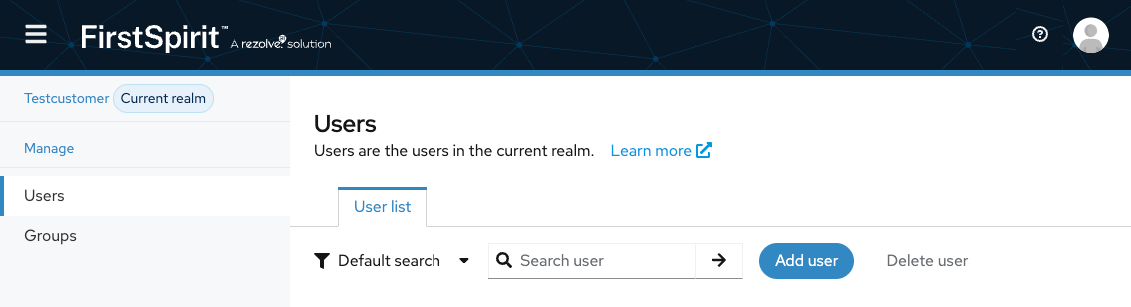
- Click Add User in the upper area.
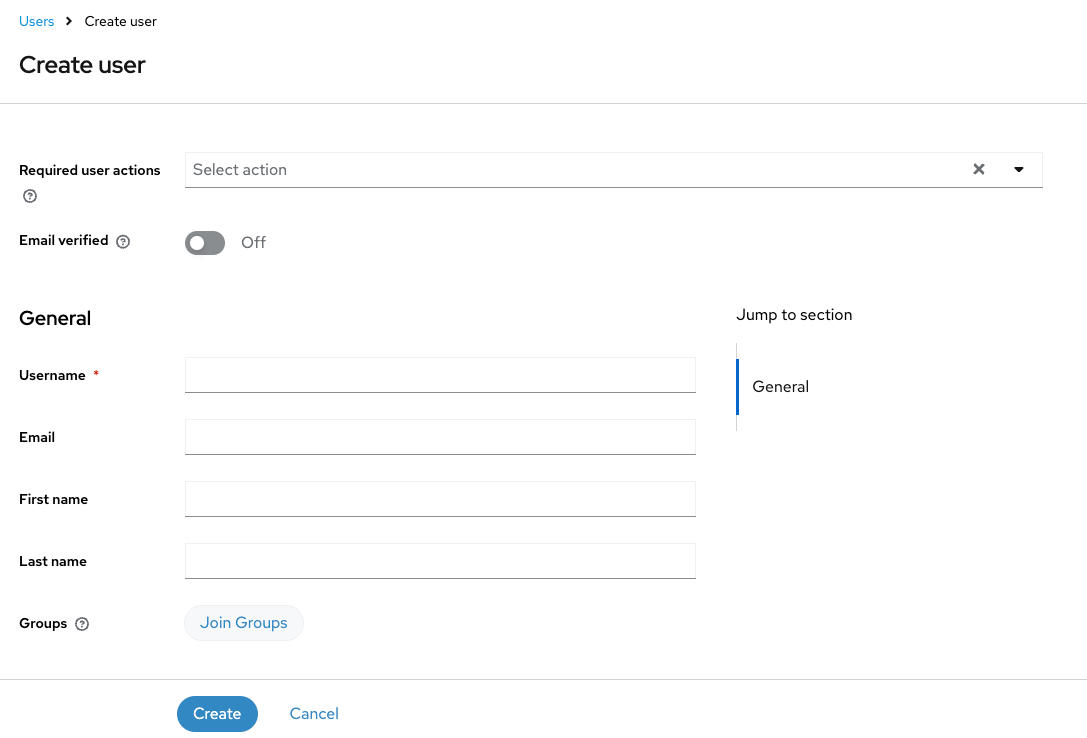
- Fill in the fields:
| Field | Required | Description |
|---|---|---|
| Username | Yes | Use only the user's business email address |
| No | Use only the user's business email address | |
| Email verified | No | Change the verification status to Yes |
| First name | No | The user's first name |
| Last name | No | The user's last name |
| Groups | No | Select the groups the user should belong to. Groups can also be assigned after the user has been created. |
- Click Create to save the user entry.
Email template
You can use the following email template as a basis for your own email and adapt it:
Hello!
We’ve created your account for the < TENANT > FirstSpirit Cloud Environment.
To sign in, you need to activate your account first:
1. Open the URL https://< TENANT >-account.e-spirit.hosting
2. Click Forgot Password.
3. Enter this e-mail address, which represents your FirstSpirit user name.
4. You will receive an e-mail to set your password (please check your spam folder, just in the case that the confirmation e-mail got delivered there instead of your inbox).
5. Click the link in the email.→ You are redirected to your Keycloak account site.
6. Set your password under Account security > Signing in.
After setting the password your account is activated. No further e-mail will be sent!
The stages can be reached via following URLs:
Development (DEV) http://< TENANT >dev.e-spirit.hostingQuality Assurance (QA) http://< TENANT >qa.e-spirit.hostingProduction (PROD) http://< TENANT >.e-spirit.hosting
If you have any questions, please feel free to contact me.
Kind regards,
Editing user entries
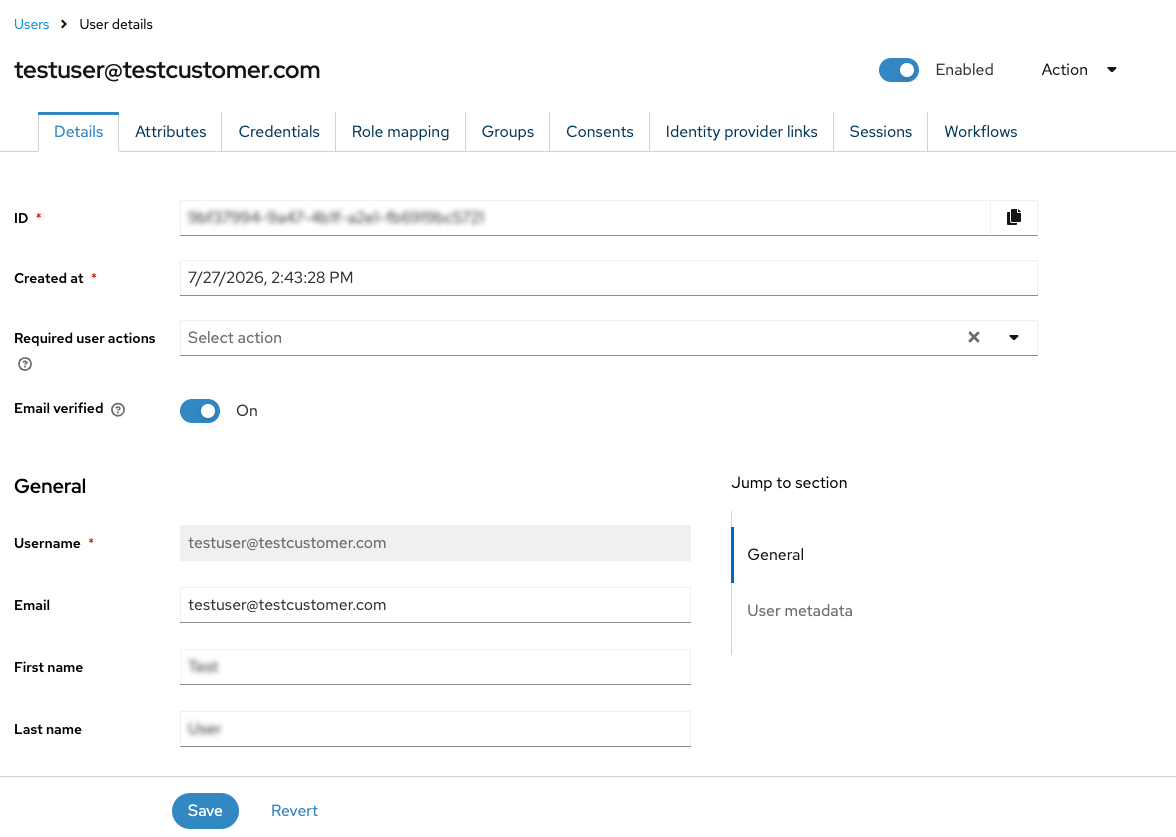
Once a user is created, you can edit other properties of the user.
- Open the Users area.
- Click the username in the Username column. The entry's detailed view will open.
Deleting users
To delete the user entry:
- Open the Users area.
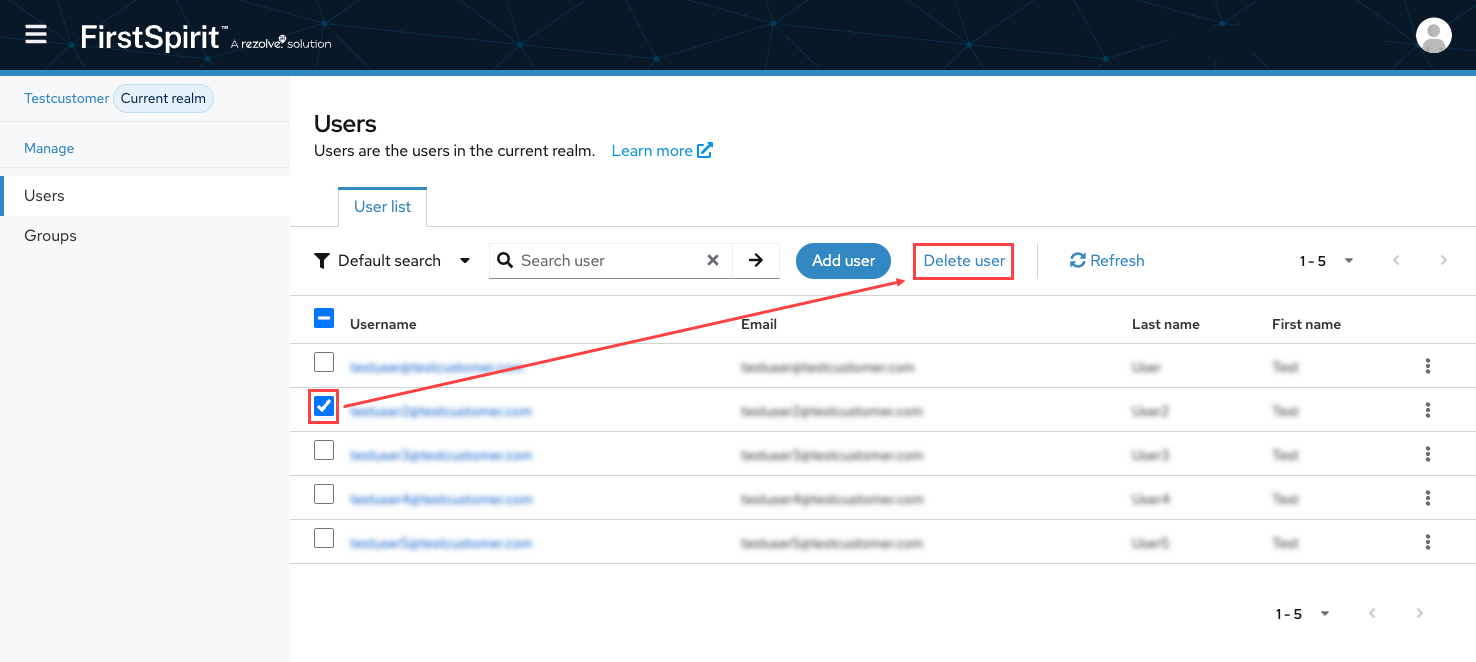
- Select one or more users in the list and click Delete user in the upper area.
- Alternatively: Click the three-dot-menu in a user entry's row and select Delete.
- Open the user entry's detailed view. Click Action in the upper area and select Delete.
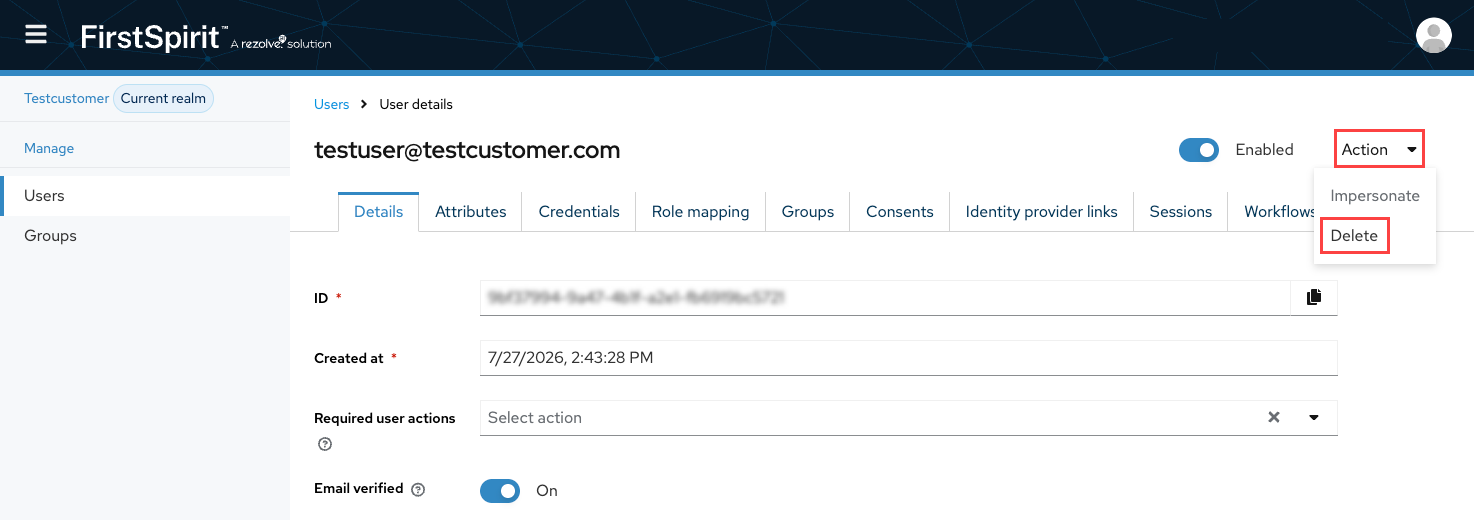
- Confirm with Delete.
It is not possible to restore a deleted user with the original settings.
It is not possible to delete users that are not managed by your company (e.g. users from partner organizations or FirstSpirit employees).
For user control:
- Deleting user from associated user groups
- Deleting associated user groups
- Support request to delete the entire partner realm
Managing user groups
Creating user groups
Typically, the user groups you need to get started with FirstSpirit Cloud are already in place and do not need to be created.
- Open the Groups area.
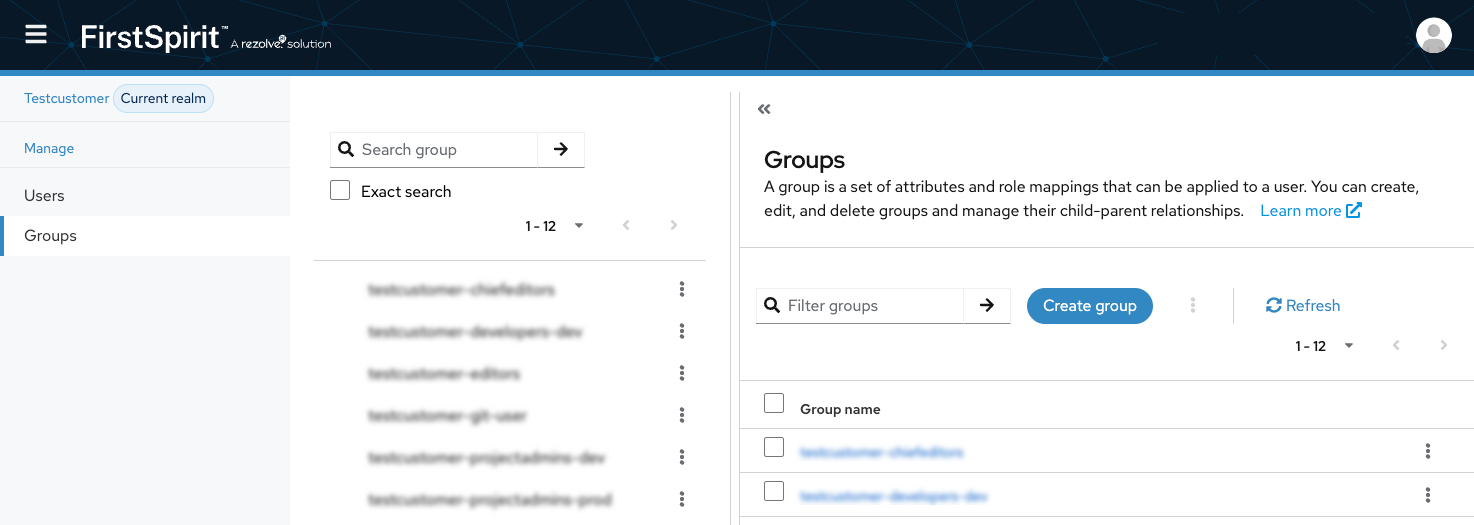
- Click Create group.
- Enter the group's name in the pop-up.
Recommendations for naming groups - Confirm with Create.
Assigning users to user groups
- Open the Users area.
- Click on the user entry in the Username column to open the user entry's detailed view.
- Open the Groups tab.
In the list, the user's memberships are displayed.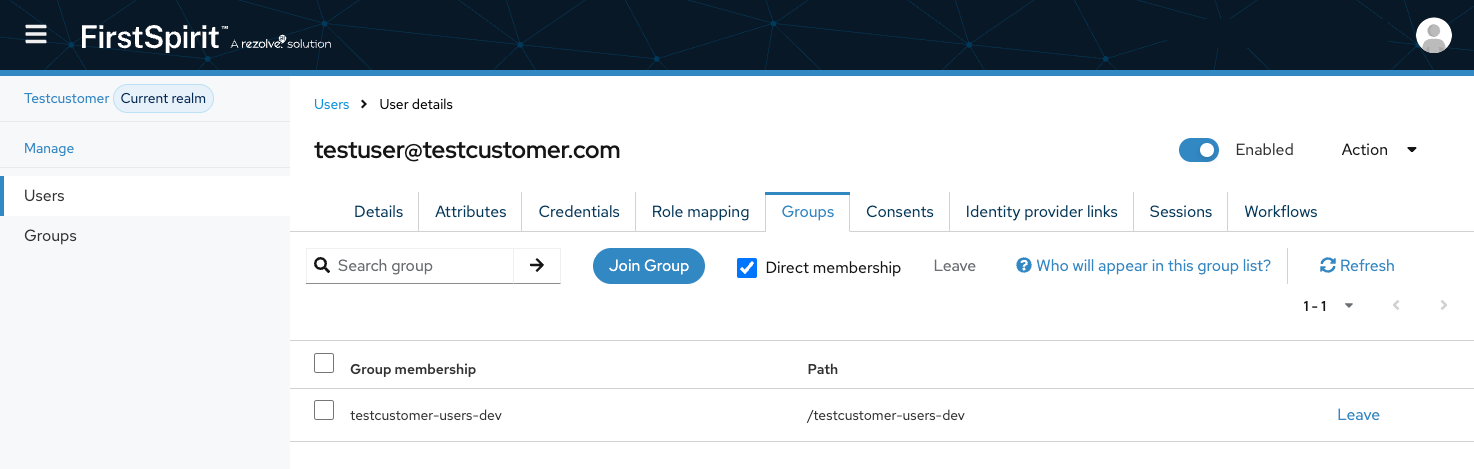
- Click Join group.
A pop-up with the list of all available groups is displayed. - Select one or more groups and click Join.
Removing users from user groups
- Inside a group entry row in the list, click Leave.
- Alternatively: Select one or more entries in the list and click Leave in the upper area.
Deleting user groups
It is not possible for a user manager or any other user role within your company to Delete user groups.
To delete a user group, create a Support request.
Managing user roles
- Open the Users area.
- In the user entry's detailed view, open the Role Mappings tab. Your realm's roles are displayed.
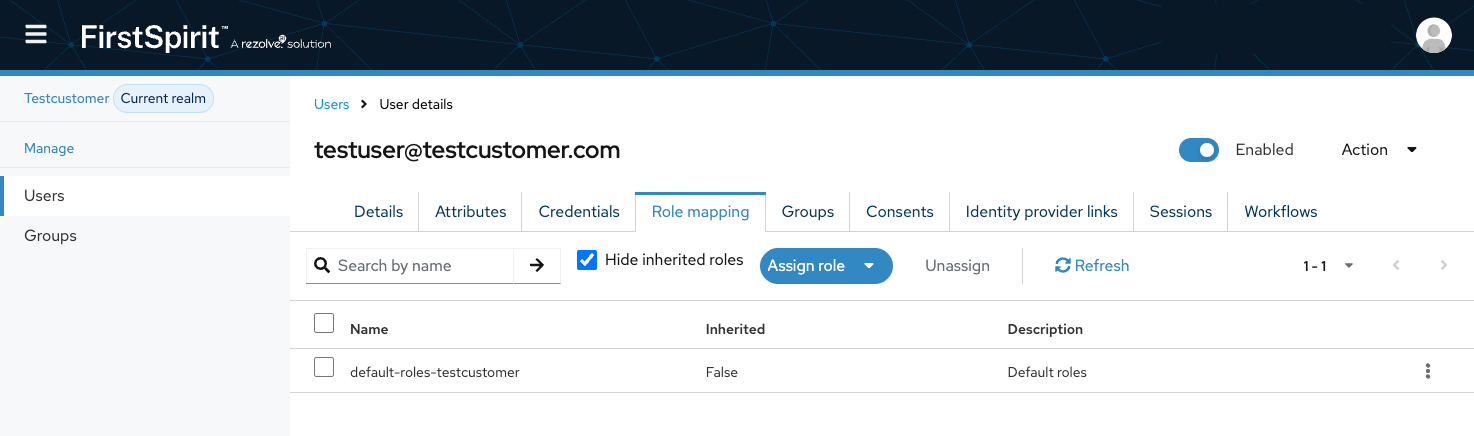
Assigning the role User-Manager
As a user manager, you can assign another user the User-Manager role.
In Keycloak:
- Navigate to the section Users > Role mapping.
- In the upper area, click Assign role > Realm roles.
- In the pop-up, select the
User-Managerrole and click Assign.
The role is assigned instantly.
User-Manager should only be assigned to persons with a user management function in the company. Depending on the company structure this can be a department, division or project manager, or the IT department.Assigning the role password-user
As a user manager, you can assign the role password-user to a user to enable local authentication.
In Keycloak:
- Navigate to the section Users.
- Open the details view for the desired user and go to the Role Mapping tab.
- Click Assign role and select Realm role.
- Select the role
password-user.
The role can also be assigned to a group. To do this, go to the Groups section, open the details view for the desired group, and follow the same procedure.
Unassigning a role
As a user manager, you can unassign roles from another user.
- Go to Users > Role mapping.
- Select a role from the list and click Unassign at the top of the page.
- Alternatively: Click the three-dot menu in the role's row and select Unassign.
- Confirm by clicking "Remove.
User-Manager from yourself. If you are the only user manager in your company, the company will lose control over user management. To have the User-Manager role assigned to a user, contact FirstSpirit Support.Creating a federation
Each FirstSpirit partner company has exactly one realm. If you wish your partner to work on your projects, your realm needs to be connected to that of your partner's.
Creating a federation needs to be requested by the customer with the FirstSpirit Support. The partner company cannot request to create a federation.
Place your support request with support@firstspirit.com and provide the user information:
- Partner company's name
- Name or ID of one or more users in your company that shall have the
User-Managerrole
Or create a ticket.