

Getting started with user and access management
Here you will find information on managing users and access rights in FirstSpirit Cloud. This information is primarily intended for project administrators and users with the role User-Manager who are responsible for setting up and maintaining user accounts, groups and access rights in the FirstSpirit Cloud environment.
This document explains the underlying concepts and the user management in Keycloak. It also guides you through two operating models:
Authentication in FirstSpirit Cloud
For user management and access rights management, FirstSpirit Cloud uses the open source software Keycloak. Keycloak is a single sign-on (SSO) solution for web applications and RESTful web services.
Internally, Keycloak functions as an identity provider (IdP) for FirstSpirit applications with the FirstSpirit server being the client. This ensures that user accounts are completely isolated from applications and that applications can never view a user's credentials.
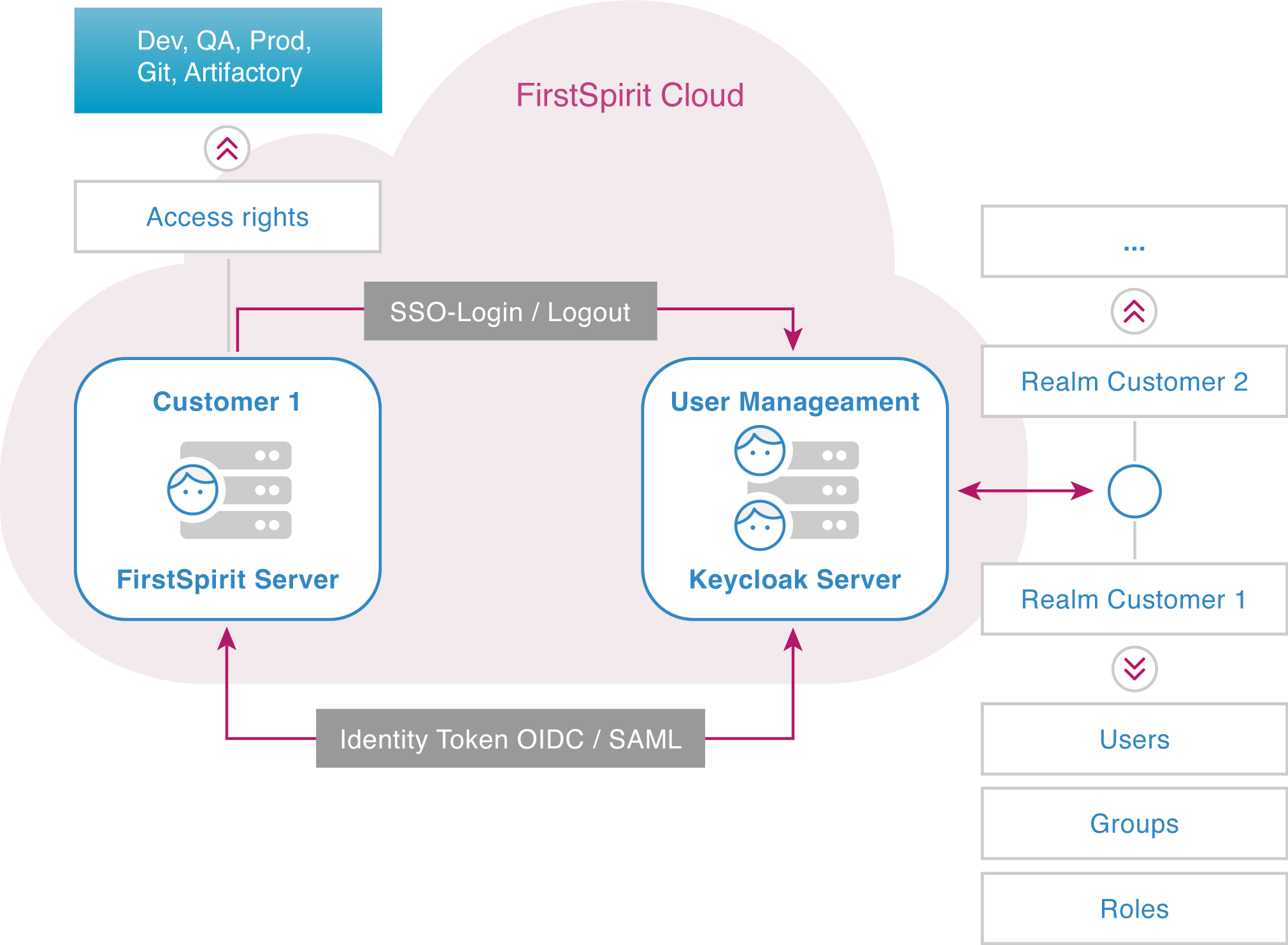
How the login works
When a user logs in to FirstSpirit Cloud, their login request is forwarded to the Keycloak server and authenticated there. After a successful login, the Keycloak server sends an identity token to the FirstSpirit server. The token contains all required information (user ID, group, validity period). This gives the user access to the areas that have been released for them.
All information about the user's permissions is contained in the identity token. The user can therefore use any other application for which they have access rights without authenticating manually. This process is known as single sign-on (SSO).
How the operating models differ: with and without an IdP
FirstSpirit Cloud offers two user management models. Which model is right for your organization depends on whether you want to integrate a company-owned identity provider (IdP). FirstSpirit recommends using an external IdP.
With an external identity provider
You connect your company's own IdP to FirstSpirit Cloud via OIDC or SAML. Users log in using their existing corporate credentials. A Keycloak account is automatically created upon the first login. As the user manager, you continue to manually assign groups and permissions in Keycloak.
Without an external identity provider
Users are created and managed directly in Keycloak. Login credentials are stored exclusively in Keycloak. This model requires no additional infrastructure. As a user with the User-Manager role, you manage user accounts and groups entirely within Keycloak.
Model comparison
| Without an IdP | With IdP | |
|---|---|---|
| User login | Keycloak account with a local password | Company login via IdP |
| Security policies | Keycloak password policies | Company policies automatically apply to the FirstSpirit Cloud as well |
| Account creation | The user manager manually creates accounts in Keycloak | Automatic creation in Keycloak upon first login |
| Group creation | Manual creation in Keycloak | Manual creation in Keycloak |
| Group permissions | Manual assignment in Keycloak | Manual assignment in Keycloak or automatic assignment via group mapping |
| Additional infrastructure | Not required | Requires your own IdP (OIDC or SAML) |
| Suitable for | Teams without SSO requirements | Organizations with centralized identity management |
Realms
To work with FirstSpirit Cloud, a user must
- be registered in the customer's access area,
- belong to at least one user group that allows access to at least one of the FirstSpirit Cloud environments (DEV/QA/PROD) and
- be associated with an access rights group (e.g. editor).
These conditions are met through the corresponding configuration in a data area called a "realm". The permissions are configured within FirstSpirit.
Realms are central organizational tools for access rights management. A realm is a configuration unit in which the following data records are defined and managed:
- users
- groups
- mappings between users and groups
Realms are isolated from each other. This means that a realm cannot access any information in another realm. Any FirstSpirit Cloud customer has exactly one associated realm, and this realm can be seen and accessed only by that customer.
Federations
Just like every customer, every partner company receives exactly one realm when it assists FirstSpirit Cloud customers with project implementation.
To allow a partner company to access the customer's environment, its realm is connected to the customer's realm. This mechanism is called federation and is set up by FirstSpirit at the customer's request. Once set up, the partner company's users are available in the customer's realm, but they have not yet been assigned any permissions. User permissions within the customer's realm are defined by the customer.
Users
A user is an identity that can log into your system. In FirstSpirit Cloud, the following information must be available for each user:
- first name
- last name
- e-mail address (also used as the FirstSpirit user name)
- membership in one or more groups
Users receive permissions exclusively by inheriting them from one or more groups or roles. For this, the user must be a member of such a group or be associated with a role.
Groups
Groups are used to manage multiple users together. A user receives their permissions by being assigned to one or more groups.
< tenant >-git-user and < tenant >-developers-dev are technical groups and therefore exceptions.)Group names are usually composed of the tenant as a prefix and a permission-specific suffix, separated by a hyphen.
Example
The group name testtenant-git-user is made up of:
- the tenant
testtenantand - the permission-specific suffix
git-user, which identifies all users with Git access rights.
Groups in the Standard Environment
The FirstSpirit Cloud includes three environments by default:
- Dev (Development)
- QA (Quality Assurance)
- Prod (Productive).
You can find more information in the FirstSpirit Guide.
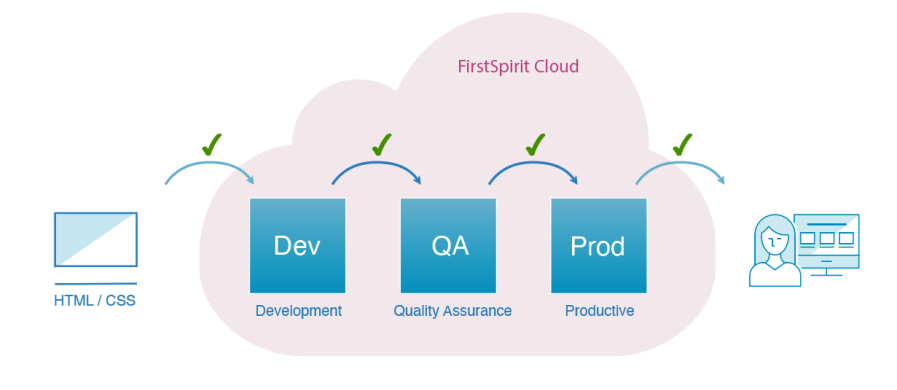
The three environments form a sequence of stages with progressively higher quality requirements: Changes are created in the development environment, tested in the QA environment, and then deployed to production. All three environments contain nearly the same projects. The customer determines how each environment is used and how the projects differ.
Changes to templates and settings are regularly pushed to the next environment to prevent discrepancies in development status.
While the Dev and QA environments typically contain test data, the Prod environment contains the entire content of the live project.
| Group | Environment | Description | Example name |
|---|---|---|---|
| <tenant>-users-dev | Development | Isolated environment for developers and editors, with no impact on production or other users. | testtenant-users-dev |
| <tenant>-users-qa | Quality assurance (staging) | Environment for testing and approving changes before they are transferred to production. The goal is a version that can be promoted to the production environment. | testtenant-users-qa |
| <tenant>-users-prod | Production | Contains all published projects that are available to customers. | testtenant-users-prod |
Other groups
| Group | Description |
|---|---|
| <tenant>-chiefeditors | Editors with extended permissions: direct releases, granting editorial and user permissions |
| <tenant>-developers-dev | FirstSpirit template developers: Artifactory access |
| <tenant>-editors | Standard editors: view all content, edit specific content. No release permissions |
| <tenant>-git-user | Access to Bitbucket (Git) and Bamboo |
| <tenant>-projectadmins-dev | Project administrators for the development environment: group permissions, languages, background processes |
| <tenant>-projectadmins-qa | Project administrators for the QA environment |
| <tenant>-projectadmins-prod | Project administrators for the production environment: management of publicly accessible websites |
| <tenant>-template-distribution | Transfer of project templates from dev → QA → prod |
Assigning permissions
Access rights are managed centrally in Keycloak for both FirstSpirit and other applications that are part of the FirstSpirit ecosystem, such as Git, Bamboo, and Artifactory.
- Permissions for FirstSpirit: Permissions for accessing FirstSpirit are assigned exclusively via groups. To do this, you must configure external groups in the respective FirstSpirit project that are mapped to groups in Keycloak. For more information, see Creating External Groups in a FirstSpirit Project.
- Permissions for other applications: Permissions for accessing Git, Bamboo, and Artifactory are granted directly in Keycloak via groups.
- Roles in Keycloak: Access rights for FirstSpirit and other applications are granted via groups. The exceptions are the two Keycloak roles,
User-Managerandpassword-user. These roles are not FirstSpirit or application roles. However, thepassword-userrole has an indirect effect on FirstSpirit access (seepassword-userrole).
User-Manager role
User-Manager is responsible for user management. In a realm, at least one user must have this role assigned to create further users and assign permissions. FirstSpirit's default settings assign this role from the start to the first user in your FirstSpirit Cloud.This role cannot be assigned to a group. Also, it is not possible to create a group with the permission to manage users.
User-Manager role should only be assigned to someone with a user management function in the company. Depending on the company structure this can be a department, division or project manager, or the IT department.password-user role
The password-user role controls which users can set a local password in Keycloak and use it to authenticate locally. A local password is independent of the password from an external identity provider and is required for technical use cases where browser-based SSO authentication is not possible, such as with FirstSpirit CLI, schedule entries or direct API authentication.
password-user role for access control only makes sense if an IdP is in use. If you are not using an IdP, all users have local access anyway. In this case, the role has no restrictive effect.Regardless of whether you use an IdP, all users are assigned the password-user role by default through the default roles. If, after setting up an IdP connection, you want to restrict the ability to assign local passwords to your users, contact FirstSpirit Support to have the role removed from the default roles. Afterward, the User-Manager can assign the role to specific users or groups as needed.
If a user's password-user role is revoked, that user can no longer set or change a local password. In addition, local authentication is no longer possible, even if a password has already been stored. An existing SSO login via the IdP is not affected by this.
Mapping
On the Keycloak server, users are given access permissions by being assigned to groups. Access permissions and workspaces are linked with FirstSpirit server groups.
To link groups between Keycloak and FirstSpirit, identical group names must be used on the FirstSpirit server and on the Keycloak server.
- The groups are created in Keycloak or were created by default.
- External groups are created in FirstSpirit. The group name in the "External name" field must be identical to the group name in Keycloak.
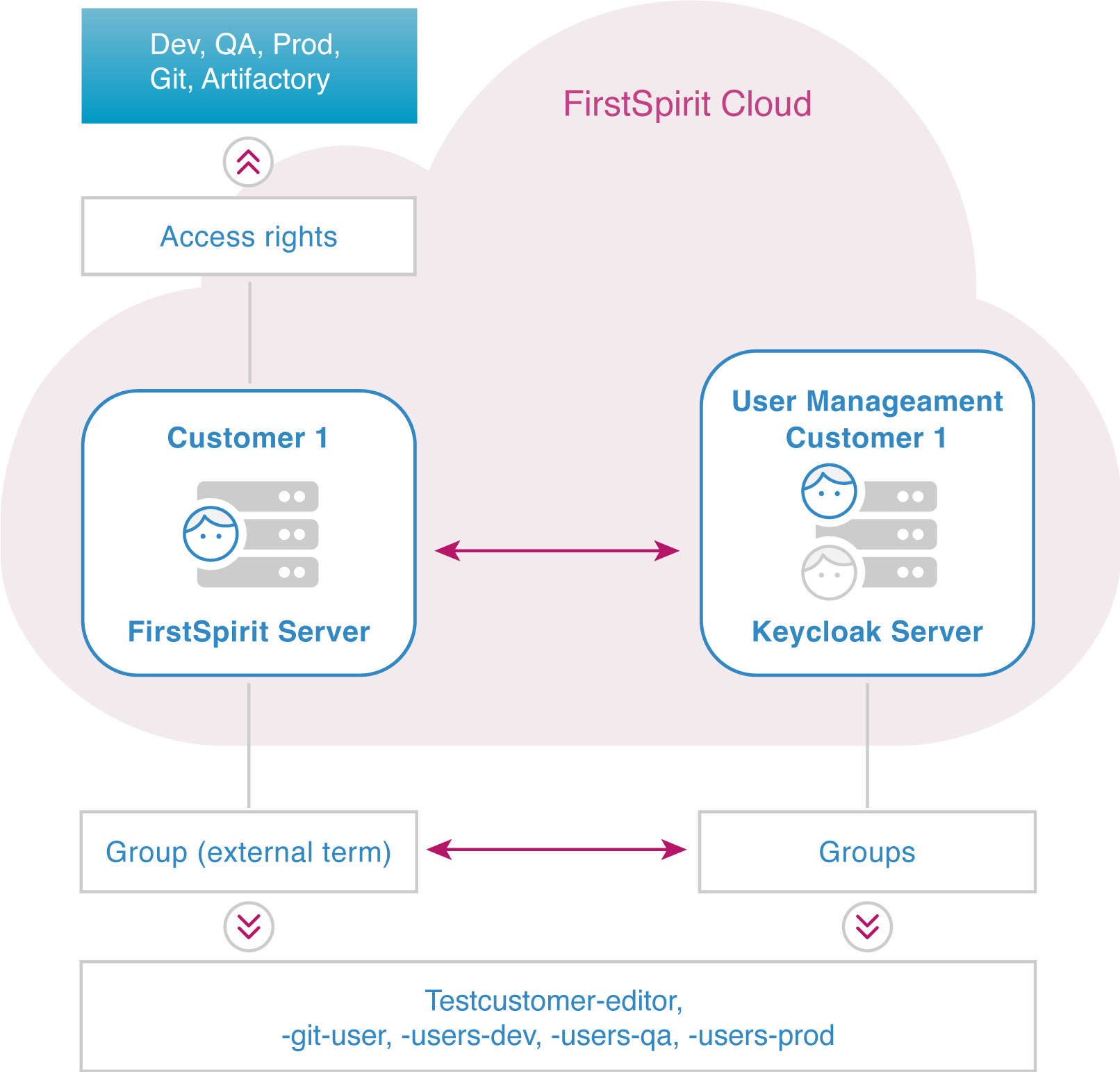
Example: Group name mapping:
- testtenant-editors
- testtenant-git-user
- testtenant-users-dev
- testtenant-users-qa
- testtenant-users-prod