

Working with AI in FirstSpirit
In FirstSpirit, AI is not a separate tool. It is integrated directly into the editors, workflows, and development tools already in use. This page explains how AI functions in practice and where to find further information.
What the AI Suite unlocks in practice
With the FirstSpirit AI Suite active on your project, editors can accomplish the following directly in ContentCreator:
- Generate and improve text (Content Assistant): Edit text elements using AI and delegate repetitive writing tasks to reduce manual effort.
- Run page-wide quality checks (Analyze Assistant): Analyze entire pages using AI and act on improvement suggestions to optimize content.
- Create alt-text (Image Assistant): Automatically generate alt-text for images using AI.
- Review output code (Code Assistant): Analyze HTML, JavaScript, or CSS for performance and accessibility issues, then optimize based on AI suggestions.
How it works: Operations
The unit of work in the AI Suite is an operation. An operation is a task defined by a prompt; for example, improve the tone of this text, or check this page for plain-language issues. When an editor runs an operation, the content is sent to the connected model through the FirstSpirit backend. Nothing is exposed through the front end, and no user metadata travels with the request.
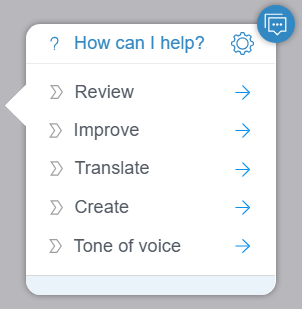
The model returns a suggestion, which the editor can accept or reject. No changes are made to the project until the editor accepts the suggestion. Every action is recorded in the project history, making the work auditable and reversible.
For the Content Assistant, you can combine an operation with an option. An option defines the values that can be inserted for a placeholder in the operation. For example, if you define an operation to translate a text, the option specifies the language into which the text should be translated.
Forms of AI in FirstSpirit
AI is available in two distinct forms in FirstSpirit:
- Assistant: Works on editor input at the point of use. The editor selects a text field, runs an operation, and receives a suggestion. The Content Assistant, Analyze Assistant, Image Assistant, and Code Assistant all function in this way.
- Workflow: Runs a fixed sequence of AI checks built into the editorial process. For example, a workflow may check grammar, tone, and SEO before a page is released. Workflows are not free-form and execute the same defined steps each time.
Connecting a model
The FirstSpirit AI Suite connects to OpenAI and Azure AI natively. If you want to use a different model, such as your own, or one hosted in your own infrastructure, you can connect it via the AI API. The model you connect determines where processing happens and, in part, the quality of the output. Your team manages the connection, the API key and the endpoint.
The FirstSpirit AI Suite runs in the cloud and on-premise. Cloud is the primary deployment, but not the only one. Availability on-premise is stated per feature.
For more information see Connecting a model and vendor.
Out of the box vs project work
Some AI features work as soon as the FirstSpirit AI Suite is active on your project. Others require configuration before they are ready to use. This distinction sets the correct expectations for what your team can do on the first day versus what requires a developer or administrator to set up in advance.
What you get out of the box
- Content Assistant inline in text fields with shipped prompts
- Automatic image cropping and alt-text generation
- Analyze Assistant with its shipped prompts
- BasicWorkflows AI Content Review
What needs project setup
- Connecting your own model
- Configuring user group access
- Enabling specific assistants on a project
- Custom operations and brand prompts
To get the most out of it
- Write prompts well and pick the right one for the task
- Use project and brand prompts for consistent tone
- Combine assistants across a content task