

User and access management with IdP
This section describes how to connect an external identity provider (IdP) to FirstSpirit Cloud and manage users in this environment. You will learn what an IdP is and what benefits using one offers, and you will be guided step by step through the setup process and the subsequent user management.
External Identity Provider
An identity provider (IdP) stores and verifies users' identities. For services provided by a service provider, such as FirstSpirit Cloud, the IdP serves as a central access system where users can log in. IdPs are typically cloud-hosted and work together with single sign-on (SSO) providers to authenticate users.
Internally, Keycloak is an IdP for FirstSpirit Cloud. However, you can also use your own IdP for user management.
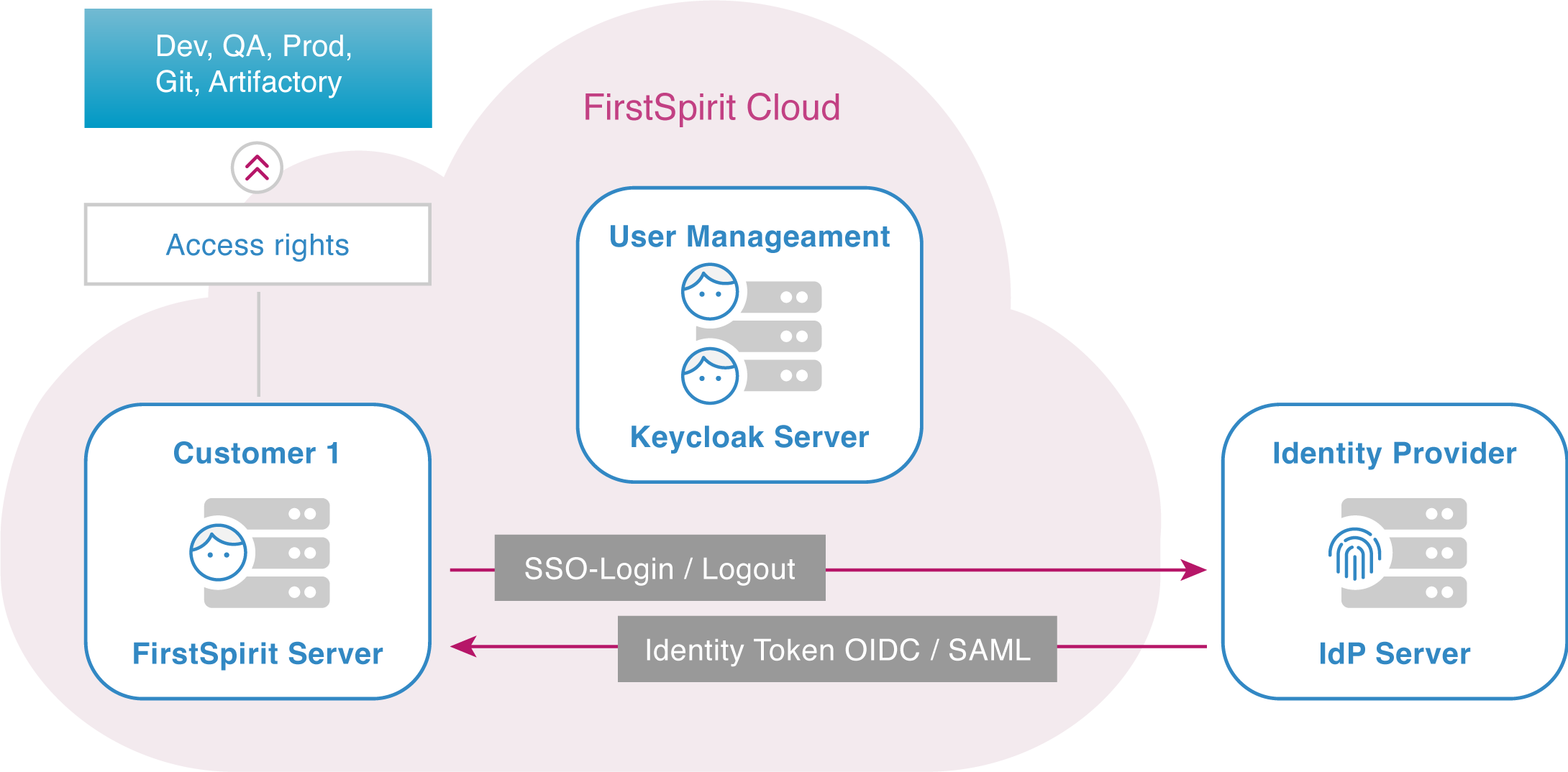
Connecting your IdP to FirstSpirit Cloud offers several benefits:
- Stronger authentication: An IdP provides solutions that ensure secure access across applications.
- Simplified user management: Another solution offered by most IdPs is single sign-on (SSO), which saves users from creating and maintaining multiple usernames and passwords.
- Better transparency: An IdP consolidates all user activity, providing transparency across all users and their permissions.
- Less effort for identity management: Central identity management makes onboarding and offboarding new editors easier, which also improves security.
- Multi-factor authentication: With your own IdP, you can implement multi-factor authentication, which FirstSpirit does not currently support.
With the exception of multi-factor authentication, these benefits already apply to Keycloak as the internal IdP in FirstSpirit. Extending your IdP to FirstSpirit gives you an additional synergy effect.
Scope of functionality
New users and automatic updates
If you use an IdP, the FirstSpirit Cloud dialog offers logging in with the provider's login as an option. If the user selects this option, they enter the credentials they need for the IdP (e.g. Azure).
If you use multi-factor authentication, this step also takes place at the external IdP.
After a successful login, the user data (user ID, email address, first name, last name, etc.) is transferred from the IdP to Keycloak, and the user with this user ID is updated. New users are created automatically in Keycloak.
Manually adding users to groups
The IdP has no information about the user's access rights to FirstSpirit Cloud applications. For this reason, adding users to groups cannot be automated. A user manager must add a new user to the required groups.
If you set up group mapping, this assignment can be automated. For more information, see group mapping.
Access to all applications with SSO login
When the user is logged in to the IdP, they have access to all of the customer's applications in their company, and also within FirstSpirit Cloud, provided their access rights have been set up in Keycloak.
It does not matter in which application the login takes place. Even if the user has previously logged in to a company application, they can reach FirstSpirit Cloud applications (e.g. Git, Bamboo, etc.) directly, without a login dialog.
Supported protocols: OIDC & SAML
FirstSpirit Cloud supports IdP login using the OIDC and SAML protocols.
OIDC
OpenID Connect (OIDC) is an open authentication protocol that uses OAuth 2.0 and extends it with an additional identity layer. With OIDC, clients can verify the identity of an end user based on the authentication performed by an authorization server.
SAML
Security Assertion Markup Language (SAML) is an open standard for exchanging authentication and authorization identities between security domains. This XML-based protocol allows authentication and authorization information to be transferred from an IdP to FirstSpirit Cloud. SAML provides functions for describing security-related information and transferring it correctly and securely.
Connecting an Identity Provider
FirstSpirit Cloud is able to connect to your IdP.
For the initial connection, we prepare your FirstSpirit Cloud access while you customize your IdP.
See the required setup steps below.
- It is necessary to add the IdP connection with SAML by adding an application ID URI in the form
https://sso.e-spirit.hosting/auth/realms/your-realm
Consult your Azure AD administrator before taking further steps with setting up SAML. - If this condition cannot be met, you can only connect your IdP with OIDC.
Creating a support request
Inform us
- about your intention to connect your FirstSpirit Cloud to your IdP;
- about the connection protocol to be used.
Write to us at support@firstspirit.com or create a ticket.
We will prepare your FirstSpirit Cloud for the IdP integration and send you links that you need for the preparation in your IdP:
OIDC
- You will receive a Redirect URI
E.g.: https://sso.e-spirit.hosting/auth/realms/your-realm - Setting up the IdP with OIDC.
SAML
- You will receive an Application ID URI
E.g.: https://sso.e-spirit.hosting/auth/realms/your-realm - You will receive a redirect URI
E.g.: https://sso.e-spirit.hosting/auth/realms/<REALM NAME>/broker/<IDP ALIAS>/endpoint - Setting up the IdP with SAML.
Requirements
- Email functionality in your Keycloak realm must be ensured.
- All users (including test users) must have an email address and be able to access their emails.
Communication of IdP set-up completion and your data to FirstSpirit
OIDC
- Set up your IdP using the received redirect URI.
- Inform FirstSpirit that the IdP set-up is complete and provide the following information:
- Configuration URL / Metadata
- ClientID
- ClientSecret
- E-mail address to set up the
User-Managerrole
SAML
- Set up your IdP using the received Application ID URI and Redirect URI.
- Set up ID, access token, and SAML token. Use your e-mail address for setting this up.
- Inform FirstSpirit that the IdP set-up is complete and provide the following information:
- E-mail addresses used for ID, Access token, and SAML token
- Federation Metadata Document URL
- E-mail address used to set up the
User-Managerrole
IdP definition in the FirstSpirit Cloud
The IdP in the FirstSpirit Cloud is defined by FirstSpirit.
You will be notified by FirstSpirit that the configuration is complete. You can then proceed with tests in FirstSpirit Cloud.
Workshop
After the configuration is complete, you will be invited to a workshop. User access will be tested and problem solutions will be discussed if needed.
New customers: Organization of groups and users in the FirstSpirit Cloud
Creating and deleting users can be done entirely through the IdP. The user manager can manage permissions only within FirstSpirit Cloud (Keycloak), for example by assigning users to groups.
- Overview of FirstSpirit Cloud groups: Groups in the default environment
- Adding users to groups: Managing user roles
- Creating groups: Creating external groups on FirstSpirit server
The first user: User-Manager
The first user account of your FirstSpirit Cloud is created by FirstSpirit, and the role User-Manager is assigned to the user. As a user manager, the first user is authorized to create further users and to make all other settings in Keycloak and FirstSpirit.
Requesting the first user
Place a support request
as an e-mail to support@firstspirit.com and provide the first user's information: first name, last name, business e-mail address
or as a ticket:
- In the Support portal, select Submit Support Request
- Enter your e-mail address and select the FirstSpirit product line
- Optionally: enter the priority, product version and FirstSpirit component
- Case reason: Service Request
- Subject: New Account
- Enter the first user's information in the description: first name, last name, business e-mail address
Activating the first user
As soon as the first user is set up, FirstSpirit will confirm your request via email.
You must first activate the user's account:
- Go to the account URL for your environment, for example, https://<tenant>-account.e-spirit.hosting.
If you are using a partner realm that does not have FirstSpirit systems, please use the central URL; see the info box below. - Click Forgot Password.
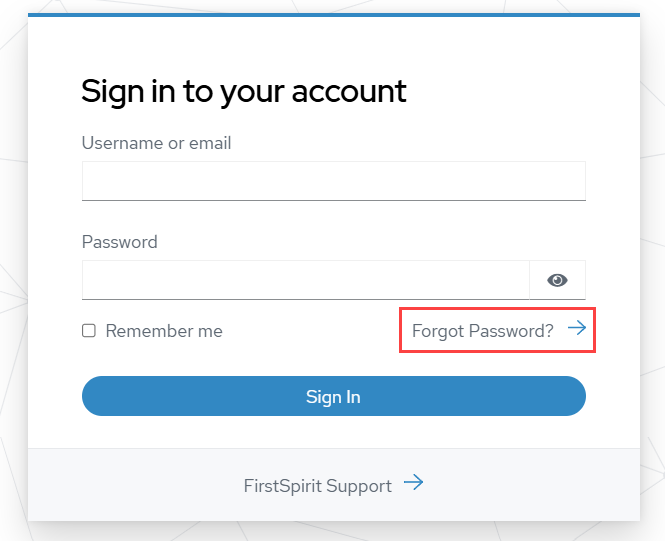
- Enter the email address that was registered with FirstSpirit for the first user.
You will receive a verification email:
- Click the link in the email.
→ You will be redirected to your Keycloak account page. - Set a password under Account security > Signing in.
Keycloak login for User-Manager
- Enter the address of your realm in your browser:
https://sso.e-spirit.hosting/auth/admin/<tenant>/console/ - Replace <tenant> with your company's FirstSpirit Cloud tenant name.
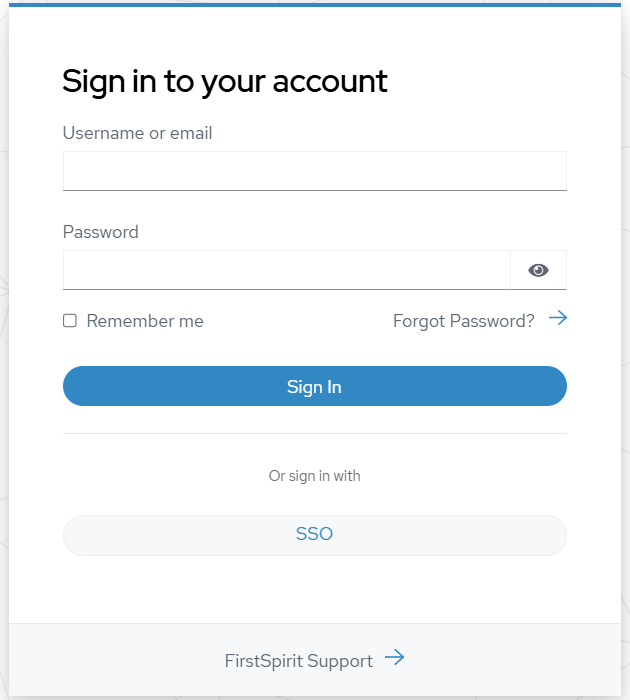
- If an identity provider is already in use, click the corresponding button under Or sign in with (see "First Login for New Users").
The user management form opens with your FirstSpirit username. Here you can manage users and groups.
Setting up a standard user
You can use the following guidelines as a template for creating user manuals for employees in your company.
A distinction is made between new users in the FirstSpirit Cloud who use an external IdP and existing users who have previously logged in to the FirstSpirit Cloud without an external IdP.
First login for new users after IdP integration
Prerequisite: Basic access to the FirstSpirit Cloud applications has been requested.
- Open the access URL to your production system.
Example: https://<tenant>.e-spirit.hosting - Select the IdP login:
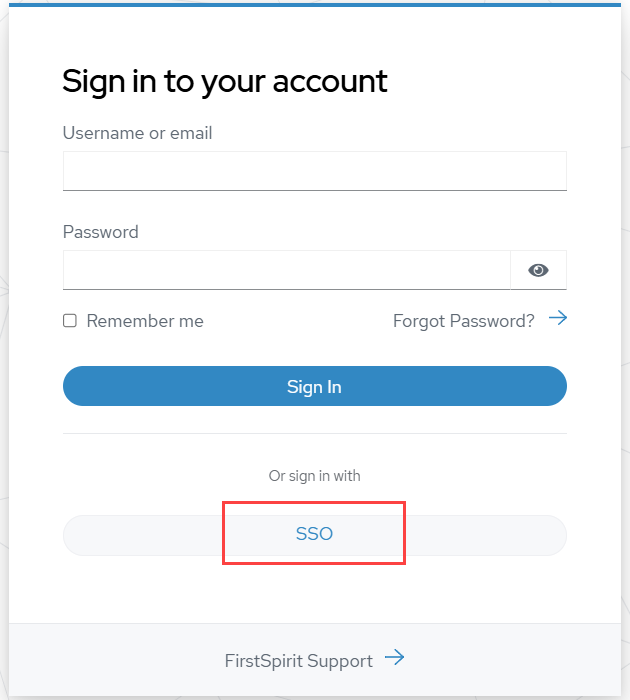
→ You will be forwarded to your company's IdP. - Log in using the IdP.
→ You are now logged in and will be redirected to the application including all access information.
First login for transferred users after IdP integration
When an IdP is integrated, users that have been created prior to such an integration need to connect their account with the IdP.
For transferring an existing user to manage them with IdP, their username needs to remain unchanged.
- Log in using your IdP.
→ You will be requested to connect your existing account with the IdP. - Click Add to existing account.
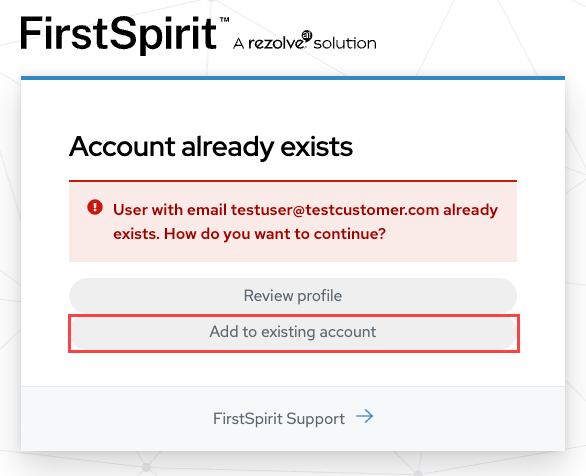
→ You will receive an e-mail to your e-mail address that needs to be verified. - Open the link in the e-mail.
→ Your account is now connected with the IdP.
User account confirmation
After the first login, an e-mail with a confirmation link will be sent to the e-mail address you provided.
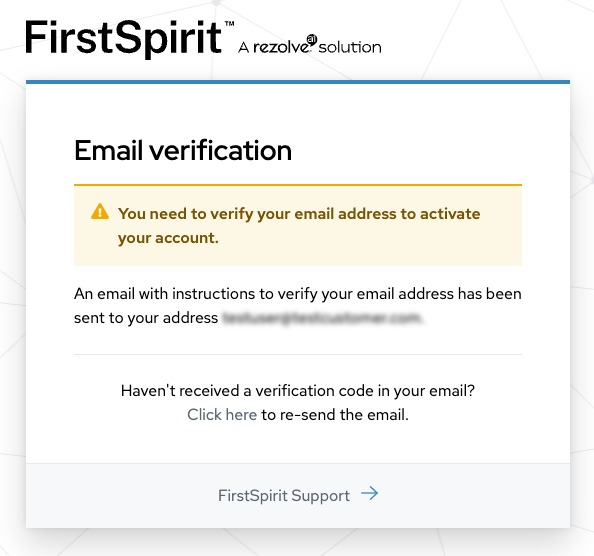
- Click on the link in the e-mail.
→ Your Keycloak user account is now connected to the IdP.
Creating groups and assigning users
For a user to be able to access FirstSpirit applications, they must be assigned to the appropriate groups in Keycloak. Group membership determines which permissions the user receives within the projects.
Enabling access to the FirstSpirit CLI and API
To use the FirstSpirit CLI or API directly, a user needs a local password in Keycloak. To do this, the user must be assigned the role password-user in Keycloak. This is necessary because browser-based SSO authentication is not possible for these technical use cases.
Configuring external groups in FirstSpirit projects
Keycloak and FirstSpirit are connected through groups with matching group names. The groups must be created in the respective FirstSpirit projects and marked as external. Activities in Keycloak, such as creating or renaming groups, are not automatically transferred to FirstSpirit. The assignment of users to groups occurs exclusively in Keycloak.
- Log in on your FirstSpirit server, open the Server Manager, select the required project and switch to the properties.
- Select Groups to display the group overview.
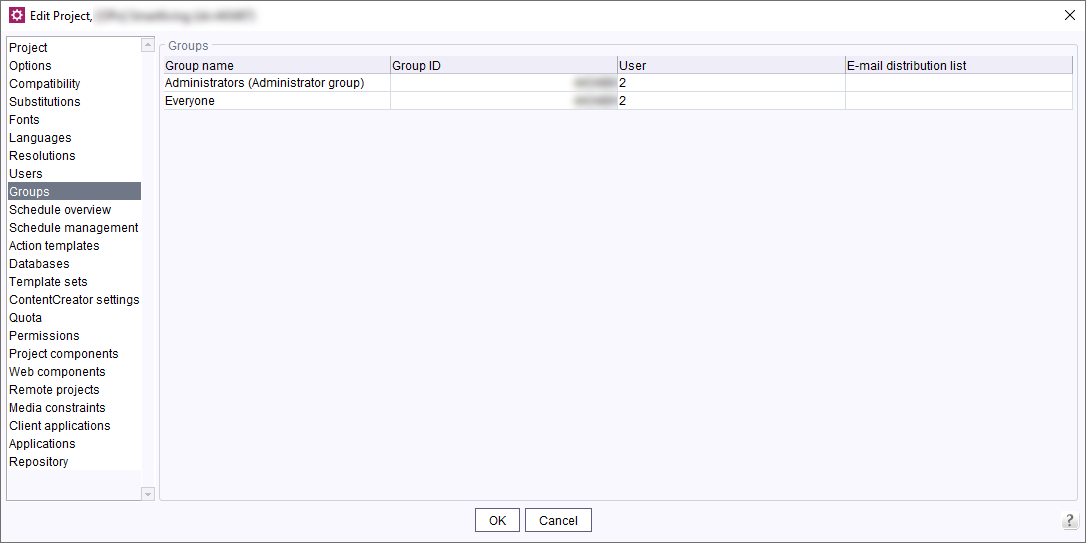
External groups are highlighted as External group in the Users column. No users are associated with such groups in FirstSpirit because the groups are managed in Keycloak. - Check, which Keycloak groups already do exist.
Creating a new group with an identical group name
- Right-click on the group list and select Create New Group.
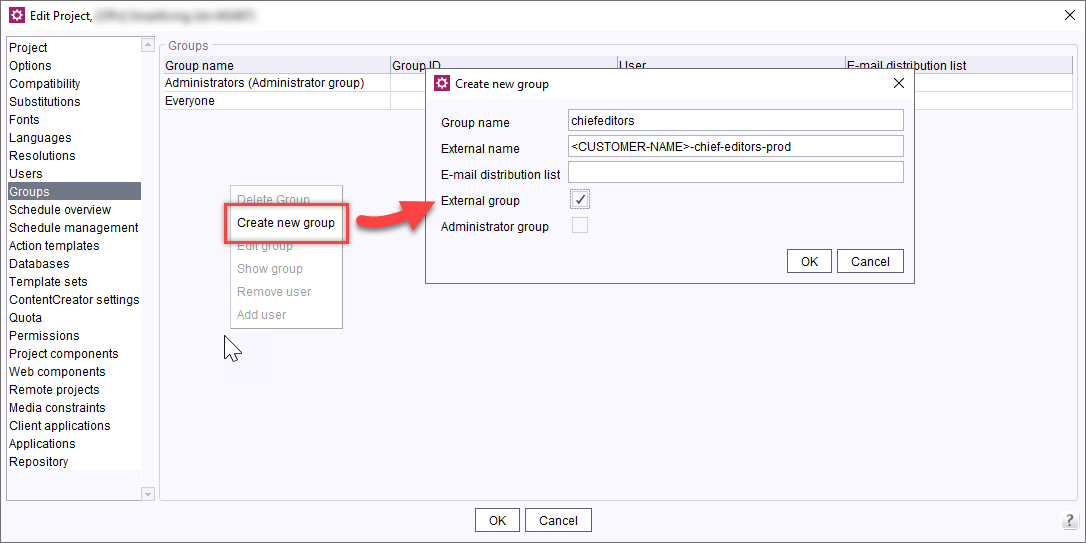
- Mark the entry as External group.
- Enter the keycloak group's exact name in the External name field.
- Confirm with OK.
Configuring access permissions
You can now configure the permissions for the new group.