

User and access management without IdP
This page describes the complete workflow for setting up and managing users without an external identity provider (IdP). You will learn how to request and activate the first user, log in to Keycloak as a user manager, create new users, assign users to groups, and finally configure external groups in your FirstSpirit projects.
The first user: User-Manager
The first user account of your FirstSpirit Cloud is created by FirstSpirit, and the role User-Manager is assigned to the user. As a user manager, the first user is authorized to create further users and to make all other settings in Keycloak and FirstSpirit.
Requesting the first user
Place a support request
as an e-mail to support@firstspirit.com and provide the first user's information: first name, last name, business e-mail address
or as a ticket:
- In the Support portal, select Submit Support Request
- Enter your e-mail address and select the FirstSpirit product line
- Optionally: enter the priority, product version and FirstSpirit component
- Case reason: Service Request
- Subject: New Account
- Enter the first user's information in the description: first name, last name, business e-mail address
Activating the first user
As soon as the first user is set up, FirstSpirit will confirm your request via email.
You must first activate the user's account:
- Go to the account URL for your environment, for example, https://<tenant>-account.e-spirit.hosting.
If you are using a partner realm that does not have FirstSpirit systems, please use the central URL; see the info box below. - Click Forgot Password.
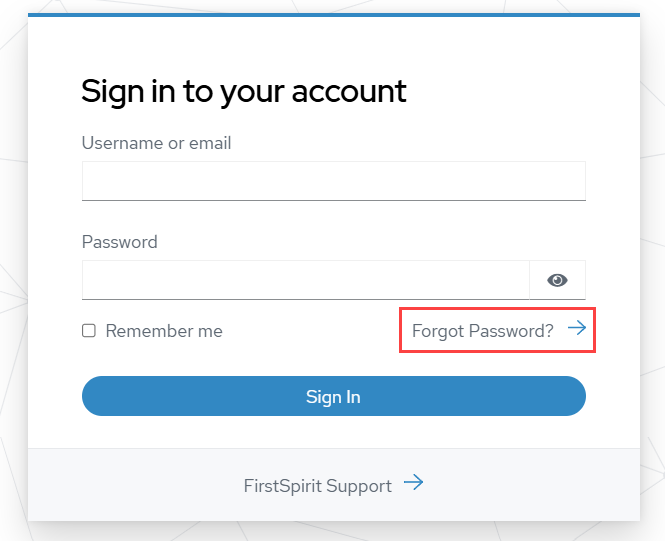
- Enter the email address that was registered with FirstSpirit for the first user.
You will receive a verification email:
- Click the link in the email.
→ You will be redirected to your Keycloak account page. - Set a password under Account security > Signing in.
The setup of the first user is complete. The first user receives the role User-Manager and can add and manage further users.
Keycloak login for User-Manager
- Enter the address of your realm in your browser:
https://sso.e-spirit.hosting/auth/admin/<tenant>/console/ - Replace <tenant> with your company's FirstSpirit Cloud tenant name.
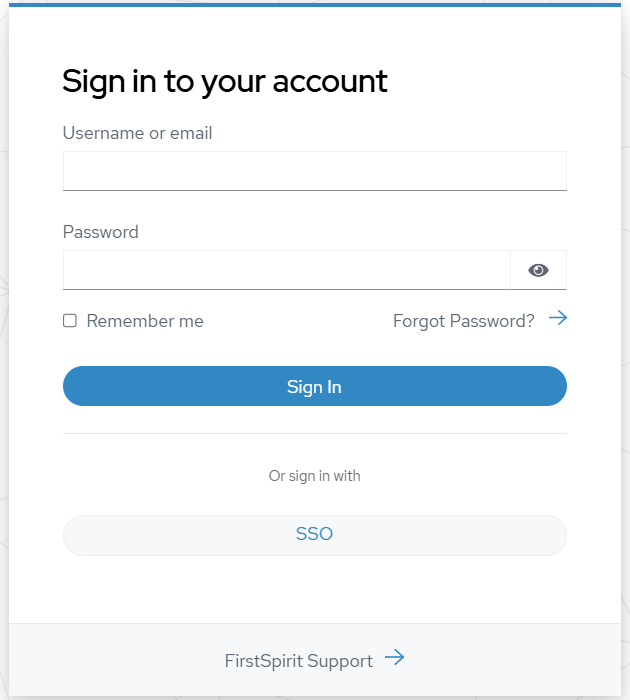
- If no identity provider has been integrated, enter your username (e.g., your email address) and password in the login form, and click Sign In.
The user management form opens with your FirstSpirit username. Here you can manage users and groups.
Creating new users in Keycloak
Before a user can be assigned to a group, their user account must be created in Keycloak by the user manager.
Only after the account has been created and subsequently activated by the user will it be available for group assignment.
Activating the default user account
The default user must activate their newly created account on their own. Notify the user of the steps required for this. The following steps are addressed to the user:
- Go to the account URL for your environment, for example, https://<tenant>-account.e-spirit.hosting.
If you are using a partner realm that does not have FirstSpirit systems, please use the central URL; see the info box below. - Click Forgot Password.
- Enter the email address that was registered with FirstSpirit for the first user.
You will receive a verification email:
- Click the link in the email.
→ You will be redirected to your Keycloak account page. - Set a password under Account security > Signing in.
Creating groups and assigning users
For a user to be able to access FirstSpirit applications, they must be assigned to the appropriate groups in Keycloak. Group membership determines which permissions the user receives within the projects.
Configuring external groups in FirstSpirit projects
Keycloak and FirstSpirit are connected through groups with matching group names. The groups must be created in the respective FirstSpirit projects and marked as external. Activities in Keycloak, such as creating or renaming groups, are not automatically transferred to FirstSpirit. The assignment of users to groups occurs exclusively in Keycloak.
- Log in on your FirstSpirit server, open the Server Manager, select the required project and switch to the properties.
- Select Groups to display the group overview.
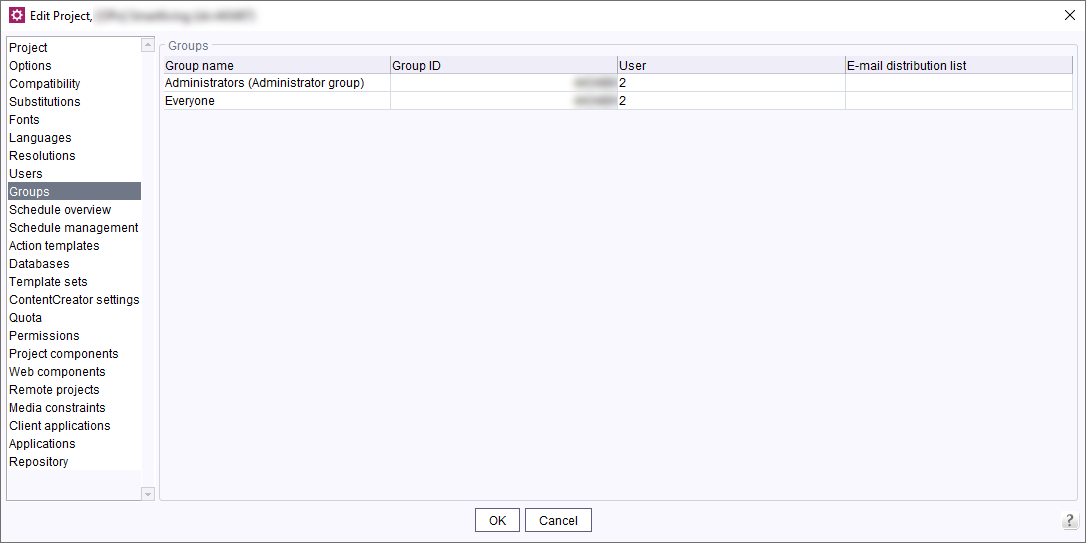
External groups are highlighted as External group in the Users column. No users are associated with such groups in FirstSpirit because the groups are managed in Keycloak. - Check, which Keycloak groups already do exist.
Creating a new group with an identical group name
- Right-click on the group list and select Create New Group.
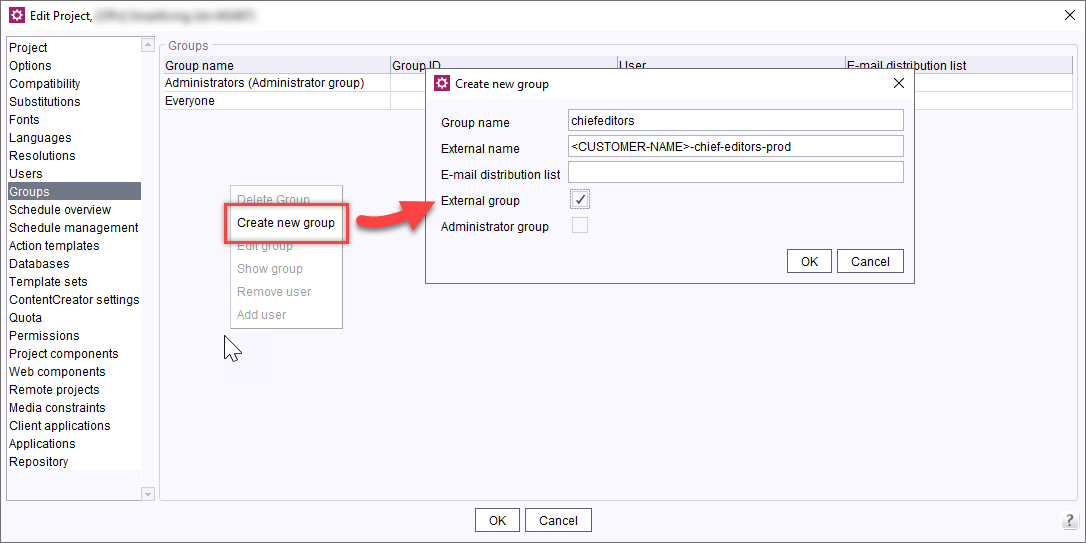
- Mark the entry as External group.
- Enter the keycloak group's exact name in the External name field.
- Confirm with OK.
Configuring access permissions
You can now configure the permissions for the new group.