AI-native work (API, MCP)
This page describes the integration entry points available: the FirstSpirit AI API for custom scripts and module actions, and the FirstSpirit MCP Connector for connecting external function servers to AI operations.
The FirstSpirit AI API
The FirstSpirit AI API provides a way to integrate generative AI into custom FirstSpirit scripts and module actions. You can access the API through the SpecialistBroker and a GenerativeAIAgent.
Example:
import de.espirit.firstspirit.ai.GenerativeAIAgent;
import de.espirit.firstspirit.ai.dto.*;
GenerativeAIAgent ai = context.requireSpecialist(GenerativeAIAgent.TYPE);
Optional<String> idea = ai.request("Generate an idea for a new article");
The connection between the FirstSpirit AI API and an external generative AI provider is established via the GenerativeAIConnectorPlugin. This plugin is implemented as a module and represents the link to an external generative AI API.
Configuring the MCP Connector
MCP (Model Context Protocol) is a protocol for connecting AI tools and their functions. When an MCP server is connected, its functions become available for use in prompt operations in the ContentCreator.
The FirstSpirit MCP Connector module opens up new opportunities for efficient, flexible, and future-oriented content creation. By connecting external MCP servers via the FirstSpirit MCP Connector module, external information can now also be used for the creation of AI-based content. This connection forms the basis for intelligent, automated content creation. For example, centrally managed tone-of-voice rules from external servers can be taken into account during AI-based text creation.
The FirstSpirit MCP Connector module is based on the GenerativeAIFunctionServerPlugin. This plugin enables the development of custom modules specifically tailored to your use cases. This way, you can also connect services that do not provide a remote MCP server.
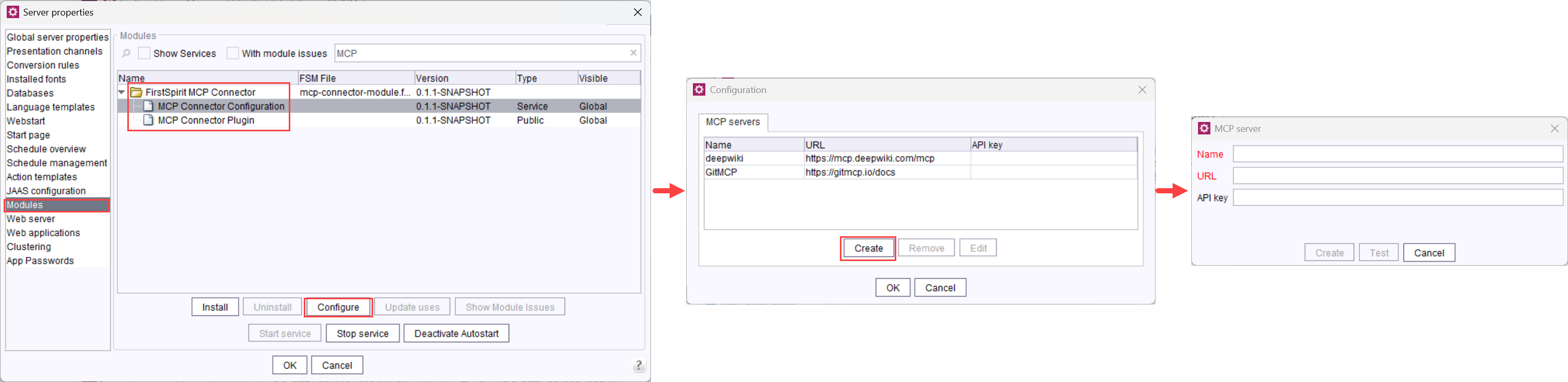
To connect an MCP server with FirstSpirit:
- Navigate to ServerManager > Server > Properties > Modules > FirstSpirit MCP Connector.
- Select the service MCP Connector Configuration.
- Click Configure.
→ The Configuration window opens. All previously configured MCP servers are listed here. - Click Create.
→ The MCP server window opens. - Enter a display name in the Name field, the server URL, and, if required, the corresponding API key.
- Click Test to verify the connection.
→ If the connection is successful, the message "Connection successful" is displayed. - Click Create to save the configuration.
→ The functions of the configured server are now available for use in the prompt configuration.