

Project configuration
This page describes how to enable the Content Assistant, Analyze Assistant, and Image Assistant for individual FirstSpirit projects.
Project-level configurations can be done by project administrators only. Steps that require server administrator rights are covered on the Server configuration.
Content Assistant
To make the Content Assistant available for an individual project:
- Navigate to the project components.
- ServerManager > Project > Properties > [Project selection] > Project components > CXT ContentCreator: Feature Configuration ProjectApp
- In the Search section, find the Report: Content Assistant feature and click Edit.
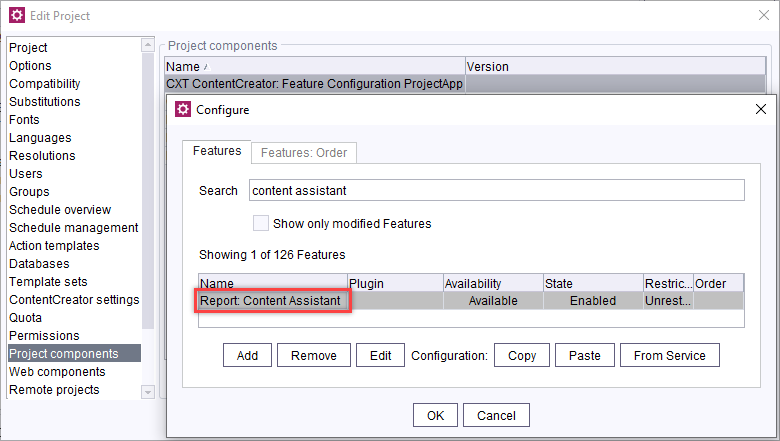
- In the Feature availability section, define the users or user groups for which the Content Assistant should be available.
→ The Content Assistant is now active for the project with the default settings.
Analyze Assistant
As a project admin you need to add the FirstSpirit Analyze Assistant project component for each project in which the Analyze Assistant functionality shall be used:
- Navigate to the project components.
ServerManager > Project > Properties > [Project selection] > Project components - Click Add and select the FirstSpirit Analyze Assistant.
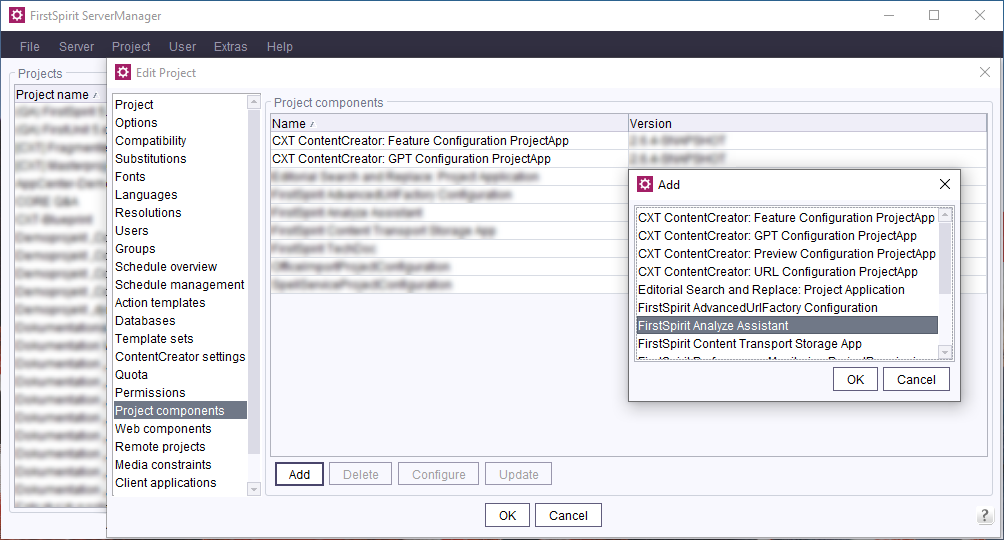
→ The Analyze Assistant can be used in this project.
Image Assistant
Add project component
To make the Image Assistant available in a project:
- Navigate to the project components.
ServerManager > Project > Properties > [Project selection] > Project components - Add the FS Image Assistant - Configuration project component.
- Optional: Configure the project component, i.e. override which prompt is used on project level.
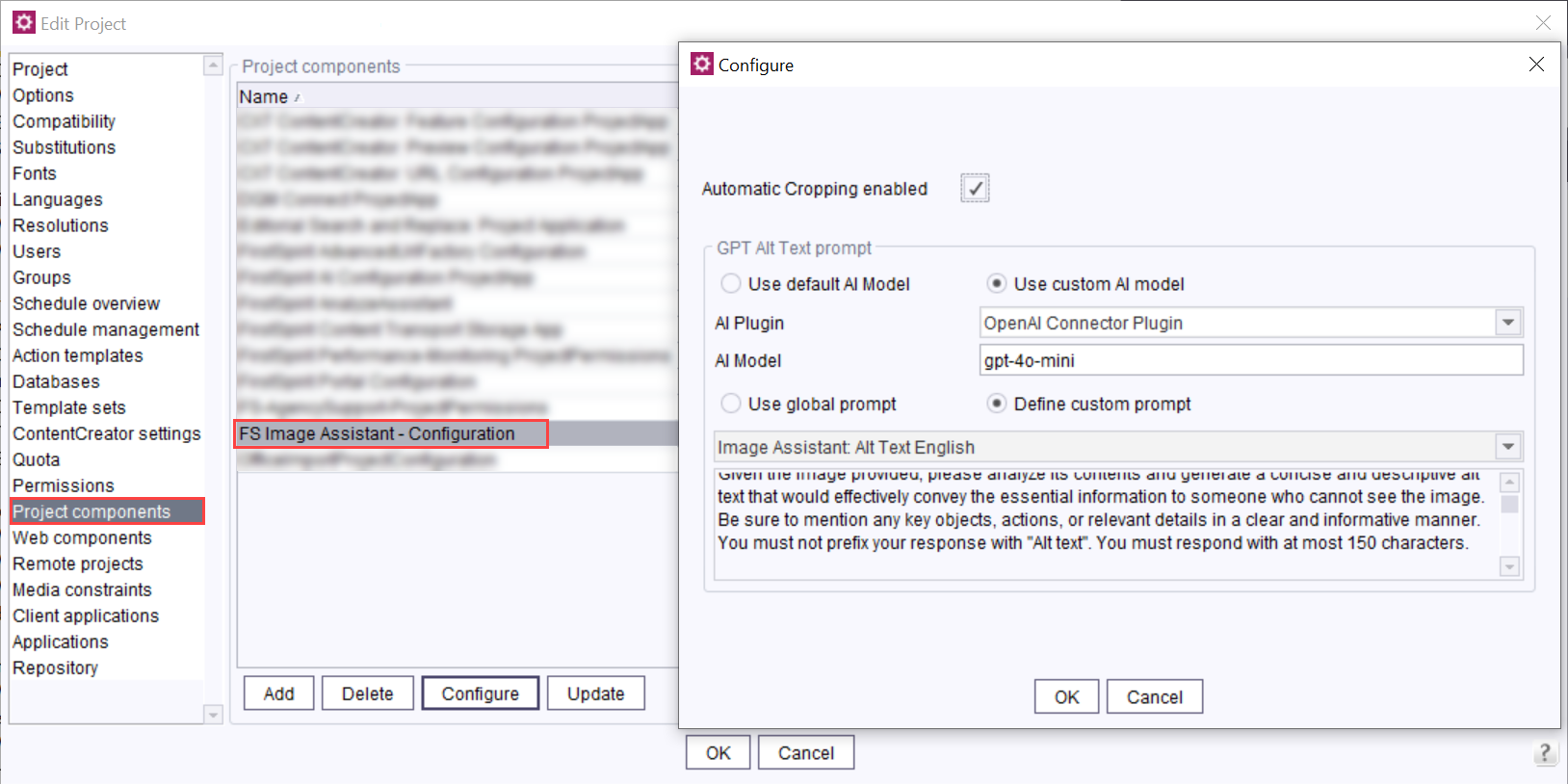
- Click OK to save your changes.
Add metadata template
Generated alt text must be correctly assigned and saved via the metadata. A metadata template must be available in the project.
To save the generated alt text, add a CMS_INPUT_TEXTAREA component named fsai_altText to the project-specific metadata template:
<CMS_INPUT_TEXTAREA name="fsai_altText">
   <LANGINFOS>
      <LANGINFO lang="*" label="Alternative Text (AI)"/>
   </LANGINFOS>
</CMS_INPUT_TEXTAREA>
The AI-generated alt text is stored in fsai_altText. The generated alt text is thus added to an image's metadata.