

Getting started for editors
The FirstSpirit AI Suite is available directly in the ContentCreator. This page covers the actions available to you as an editor.
The assistants ship with preset, functional prompts maintained by FirstSpirit, so you can start working as soon as the assistants are active on the project. The configuration of FirstSpirit AI is mandatory for activation.
Working with text sections
The Content Assistant supports text-based tasks directly in the ContentCreator. It is available in single-line text fields, Rich-Text editors, the InEdit view, and the Content Assistant report panel on the right.
Improving text
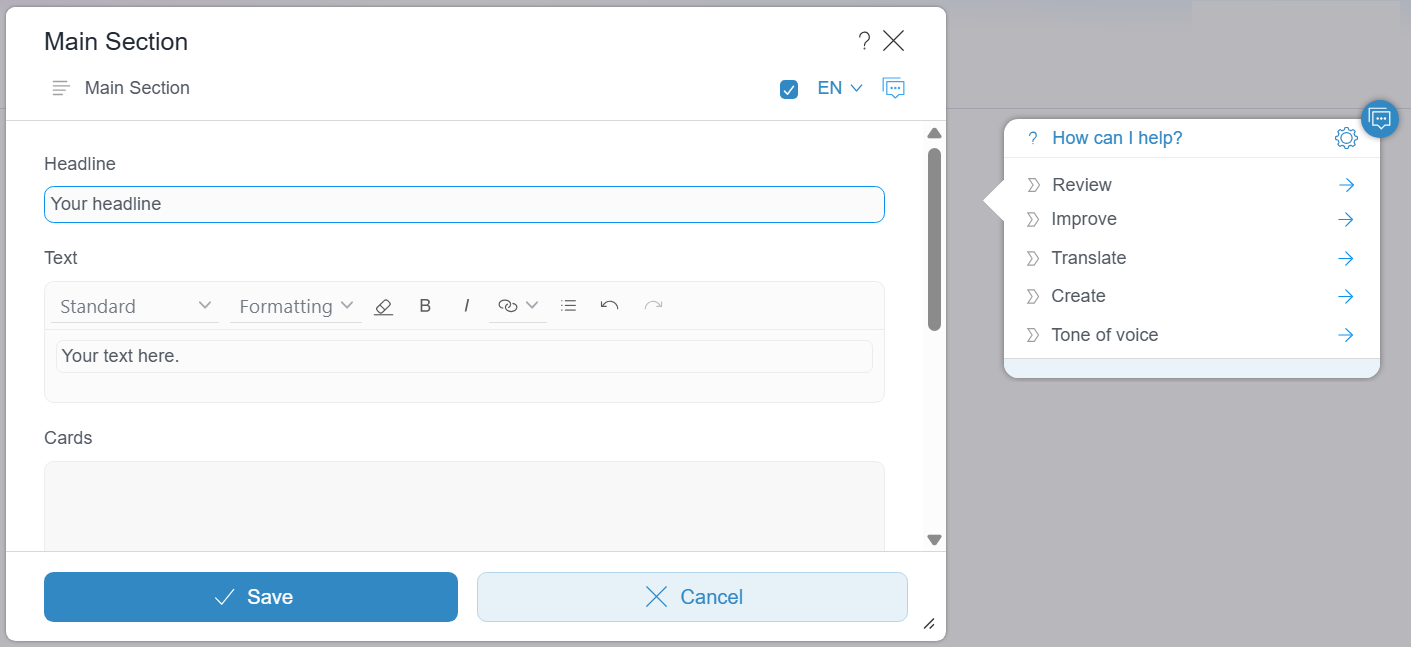
The Content Assistant can perform tasks directly inside a text field.
- Open a content element (a page, section or dataset) or the text editor in the preview (InEdit view).
- Click into the text field.
→ A speech bubble with pre-set operations appears next to the text field.
The operations will only apply to either the whole active text paragraph, or to the selected text. - Click an operation.
- If options are displayed for an operation, the first entry of each option is already preselected. You can change the selection at any time by choosing a different entry. An empty selection is not possible. The operation can therefore be executed immediately. Click Perform.
→ The operation will be performed outside of the text field inside the speech bubble.
- Click
 .
.
→ The generated text is transferred into the text field. The original text in the active text paragraph will be overwritten.
Generating text or ideas from a prompt
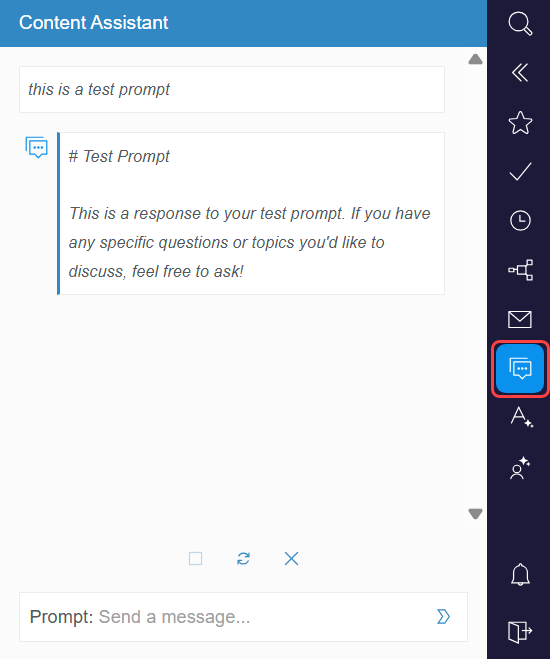
- Click the Content Assistant icon to open the report panel.
- → The Content Assistant report opens on the right.
- Enter a prompt in the text field.
→ A result is generated based on your input. - Use drag and drop to move text from the report into a text field.
Working with full pages
The Analyze Assistant evaluates the currently open page and identifies text-related issues. It proposes fixes that you can review and apply individually or in bulk.
Checking a page before release
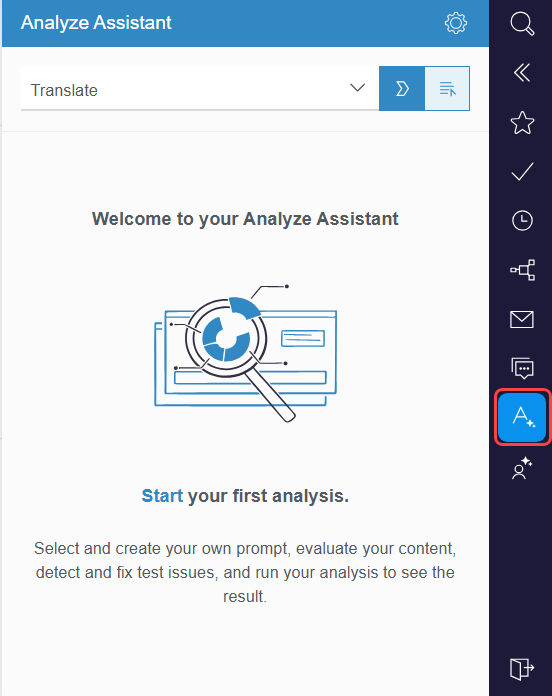
- To open the Analyze Assistant report, click the Analyze Assistant icon in the report panel on the right.
- In the dropdown, select a prompt.
→ The analysis starts automatically. Proposed changes are listed in the report as the analysis runs. - Optional: Click the cancel icon
 to interrupt the analysis.
→ The list of already generated proposed changes is not discarded.
Reviewing and applying proposed changes
After the analysis is complete, all list entries are automatically selected. Review each entry before applying changes.
To locate an element on the page:
- Hover over an entry in the list.
→ The element is highlighted on the displayed page if currently visible.
To apply changes in bulk:
- Use the Select all checkbox to select all entries.
- Click Apply.
→ The changes for all selected entries are applied.
Working with images
The Image Assistant supports two tasks automatically:
- When an image is uploaded, alt text is generated and stored in the image metadata.
- Crops for all required resolutions are created automatically based on the identified subject.
For more information see Image Assistant.