

Analyze Assistant
The Analyze Assistant evaluates the currently displayed page in the ContentCreator against a selected prompt and proposes text changes. Changes can be applied individually or in bulk directly from the report area.
The assistant comes with a preconfigured set of prompts that allow you to get started right away. To harness the full potential of the assistant, customize existing prompts or create your own.
Where to access the Analyze Assistant
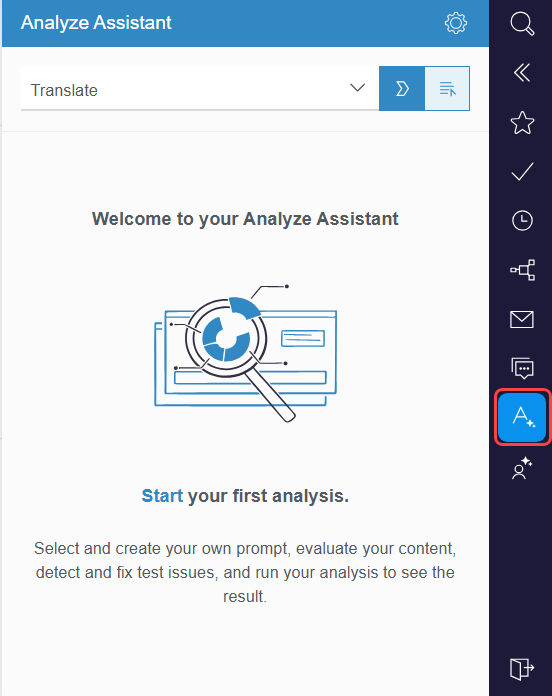
The Analyze Assistant is accessed from the report area on the right of the ContentCreator. Click the Analyze Assistant icon to open the report. A dropdown lists all operations available for the current project.
Running a page analysis
- To open the Analyze Assistant report, click the Analyze Assistant icon in the report panel on the right.
- In the dropdown, select a prompt.
→ The analysis starts automatically. Proposed changes are listed in the report as the analysis runs. - Optional: Click the cancel icon
 to interrupt the analysis.
→ The list of already generated proposed changes is not discarded.
Reviewing and applying proposed changes
After the analysis is complete, all list entries are automatically selected. Review each entry before applying changes.
To locate an element on the page:
- Hover over an entry in the list.
→ The element is highlighted on the displayed page if currently visible.
To apply changes in bulk:
- Use the Select all checkbox to select all entries.
- Click Apply.
→ The changes for all selected entries are applied.
To review a proposed change in detail:
- Hover over an entry in the list and click the compare icon
 .
.
→ A pop-up window opens. - Select a view:
 Combined view: The initial text and the proposed changes are displayed in the same text field.
 Compare view: The initial text and the proposed changes are displayed side by side.
 Preview: Only the proposed changes are displayed.
- Optional: Edit the proposed changes directly in the pop-up window.
- Click Save Draft to save your edits without applying them, or click Apply Changes to apply the changes immediately.
→ Applied changes are visible on the page immediately. The entry is removed from the list.
To accept a proposed change:
- In the EasyEdit toolbar of the entry, click
 to accept the proposed change.
→ The entry disappears from the list and the changes are applied immediately.
To discard a proposed change:
- Hover over an entry in the list and click the discard icon .
→ The entry is removed from the list. The element is not affected.
Managing operations in the Analyze Assistant
Managing the list of operations
You can view a list of all operations available in the FirstSpirit AI Suite directly in the ContentCreator:
- Open the Analyze Assistant report.
- Click the Settings button.
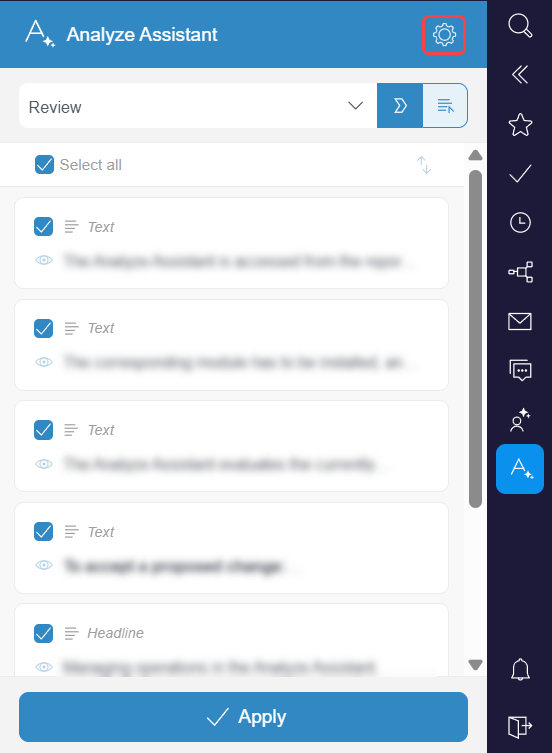
→ The AnalyzeAssistant window opens. Here you can see a list of all operations available in the FirstSpirit AI Suite.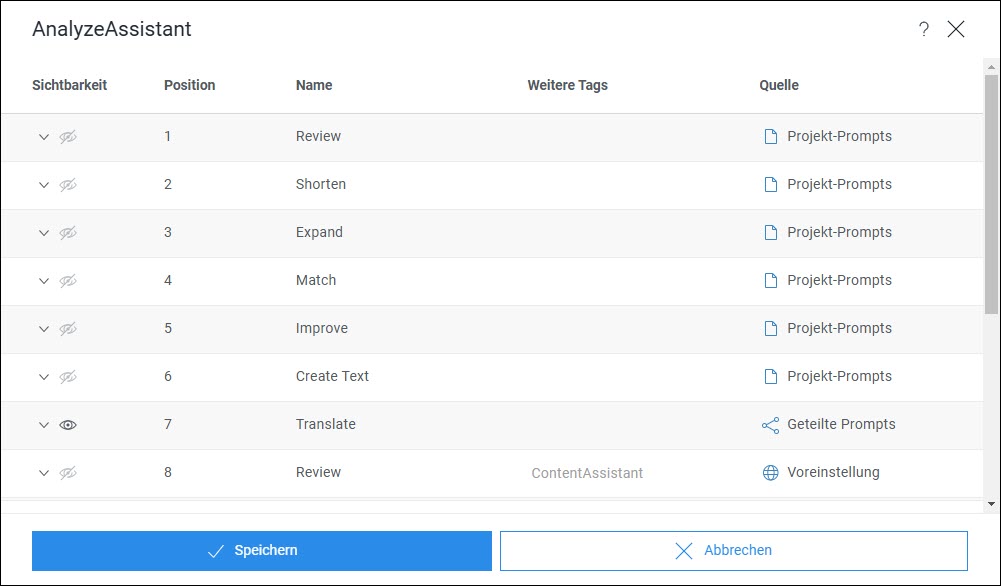
The list of all FirstSpirit AI Suite operations provides the following information:
- Visible: Indicates whether the tag for this assistant has been set for the respective operation.
- Position: Describes the order in which the operations are displayed in the respective assistants.
- Name: Displays the name of an operation that is also shown to the end user in the respective assistant.
- More tags: Indicates whether additional tags have been assigned to the operation. If the column for an operation is empty, this operation is only used in the Content Assistant.
- Source: Describes the level at which the operation was created and can be edited, i.e., predefined, global, shared, or project-specific.
The following operations are available to you:
Managing individual operations
You can edit Analyze Assistant operations directly in the ContentCreator via the Analyze Assistant report:
- In the Analyze Assistant report, select an existing operation from the dropdown menu.
- Click the Edit prompt button.
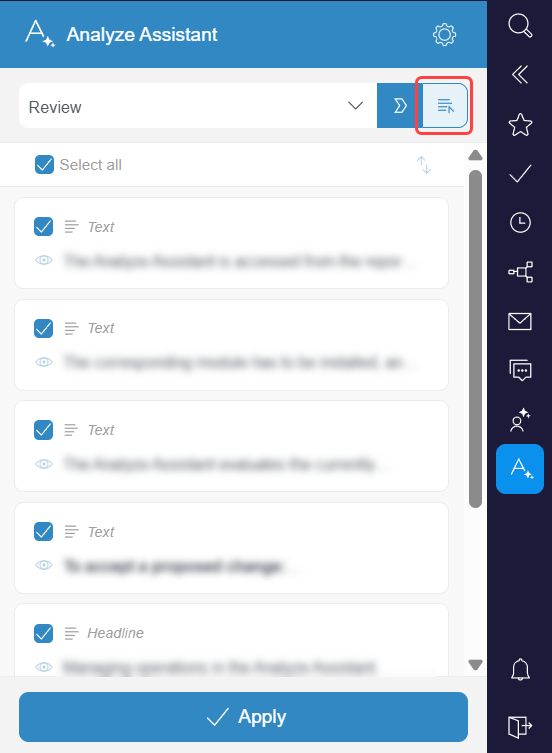
→ The Edit operation window opens where you can edit the operation.
You can perform the following actions in the Edit operation window:
Preset prompts
FirstSpirit offers you the following preset prompts for the Analyze Assistant:
- Review: Checks the texts on the given page for errors and improves the quality.
- Improve / Simple language: Simplifies the texts on the given page to make them easier to understand.
- Improve / Formal language: Modifies the texts on the given page to achieve a more formal style.
- Shorten: Reduces the texts on the given page to make them more concise.
- Tone of Voice: Adjusts the tone of the texts on the given page to achieve a desired mood or style.
- SEO: Optimizes the texts on the given page for search engines to improve discoverability.
Limits
The following limitations apply to the Analyze Assistant and the connected model:
- Output quality depends on the connected model.
- Large language models can produce incorrect or misleading information. All AI-generated content must be reviewed before publication.
- Analysis of content projections with more than one dataset is not supported.