

Content Assistant
The Content Assistant is an AI-based tool for text-related tasks within the ContentCreator. It supports repetitive tasks such as text translation, shortening, or rephrasing to improve efficiency with the help of AI while editors still have full control.
The assistant comes with a preconfigured set of prompts that allow you to get started right away. To harness the full potential of the assistant, customize existing prompts or create your own.
Where to access the Content Assistant
The Content Assistant is available in three locations within the ContentCreator:
- In a single-line text field or Rich-Text editor, as a speech bubble that appears when you click into the field.
- In the InEdit view, directly in the preview.
- In the report panel on the right, as a chat-style prompt report.
Using the Content Assistant in a text field
The Content Assistant can perform tasks directly inside a text field.
- Open a content element (a page, section or dataset) or the text editor in the preview (InEdit view).
- Click into the text field.
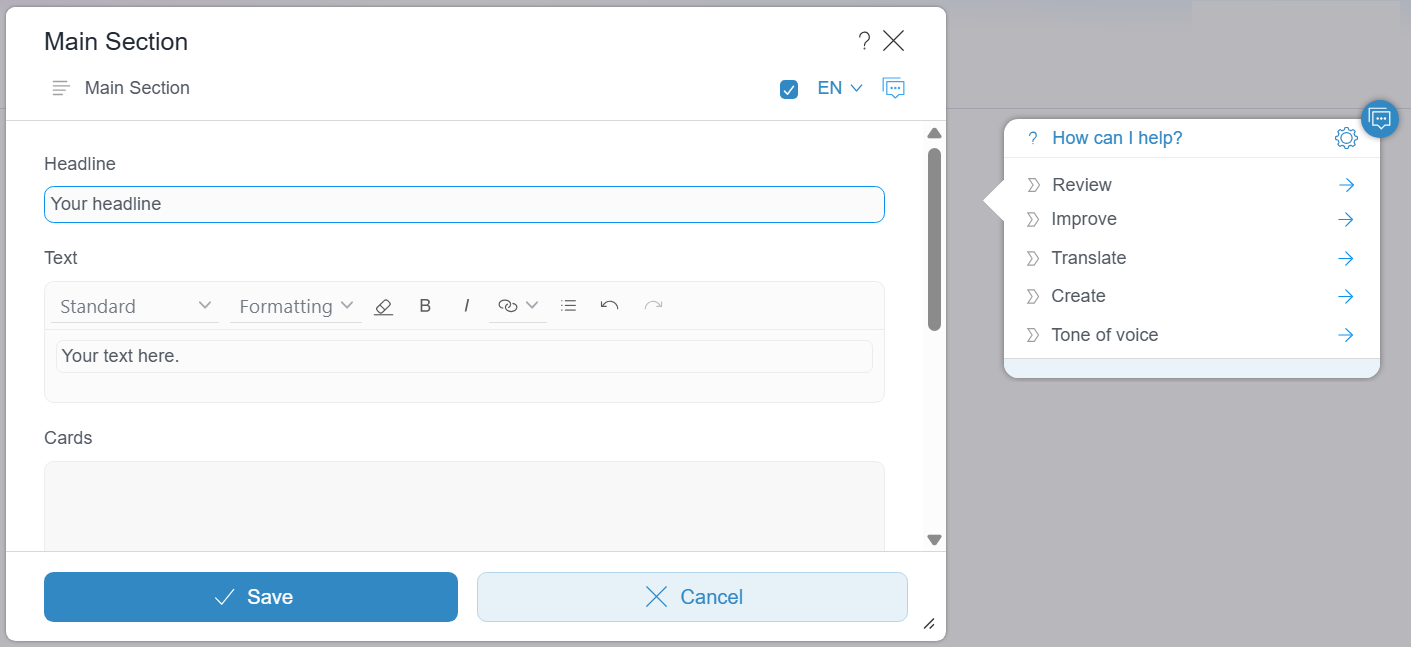
→ A speech bubble with pre-set operations appears next to the text field.
The operations will only apply to either the whole active text paragraph, or to the selected text. - Click an operation.
- If options are displayed for an operation, the first entry of each option is already preselected. You can change the selection at any time by choosing a different entry. An empty selection is not possible. The operation can therefore be executed immediately. Click Perform.
→ The operation will be performed outside of the text field inside the speech bubble.
- Click
 .
.
→ The generated text is transferred into the text field. The original text in the active text paragraph will be overwritten.
Actions in the speech bubble
| Icon | Action |
|---|---|
| confirm_icon | The suggestion is transferred into the active text paragraph. |
| discard_icon | The suggestion is discarded. |
| compare_icon | Differences between the current text and the suggestion are displayed. |
| back_icon | If you have generated multiple times, the previous suggestion is displayed. |
| forward_icon | If you have generated multiple times, the next suggestion is displayed. |
| stop_icon | The operation's execution is canceled. |
| re-generate_icon | The operation is re-executed to generate a new suggestion. |
| settings icon | The window Edit operation opens. |
To deactivate the Content Assistant for a section:
The Content Assistant can be deactivated for an individual section.
- Click the deactivate icon
 in the content editor or the preview editor (InEdit).
→ The speech bubble is no longer displayed for that section.
Managing operations in the Content Assistant
Managing the list of operations
- Open a content element (page, paragraph, dataset) or the text editor in the preview.
- Click in a text field.
→ A speech bubble with preset operations will appear next to the text field. - Click the Settings button.
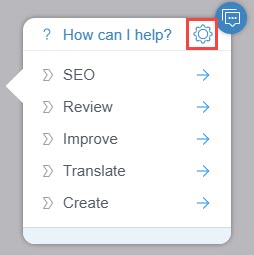
→ The ContentAssistant window opens. Here you can view the list of all operations available in the FirstSpirit AI Suite.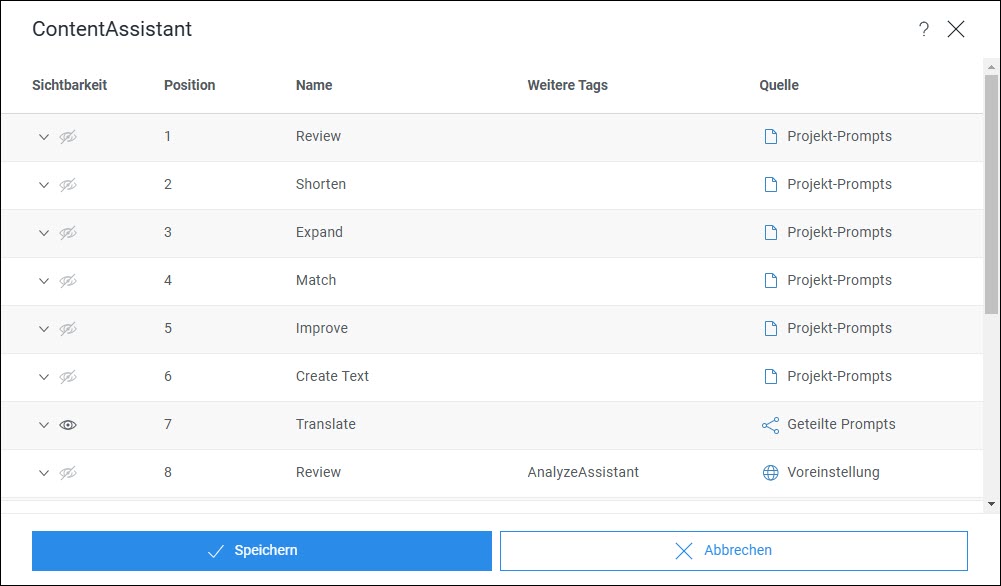
The list of all FirstSpirit AI Suite operations provides the following information:
- Visible: Indicates whether the tag for this assistant has been set for the respective operation.
- Position: Describes the order in which the operations are displayed in the respective assistants.
- Name: Displays the name of an operation that is also shown to the end user in the respective assistant.
- More tags: Indicates whether additional tags have been assigned to the operation. If the column for an operation is empty, this operation is only used in the Content Assistant.
- Source: Describes the level at which the operation was created and can be edited, i.e., predefined, global, shared, or project-specific.
The following operations are available to you:
Managing individual operations
You can open the window for editing individual operations directly via the Content Assistant speech bubble:
- Click on an operation in the speech bubble next to the active text field.
- Click on the Edit operation prompt button.
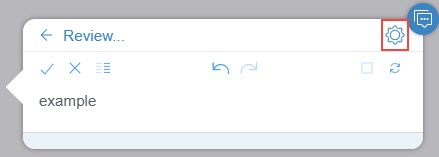
→ The Edit operation dialog window opens, allowing you to edit the operation.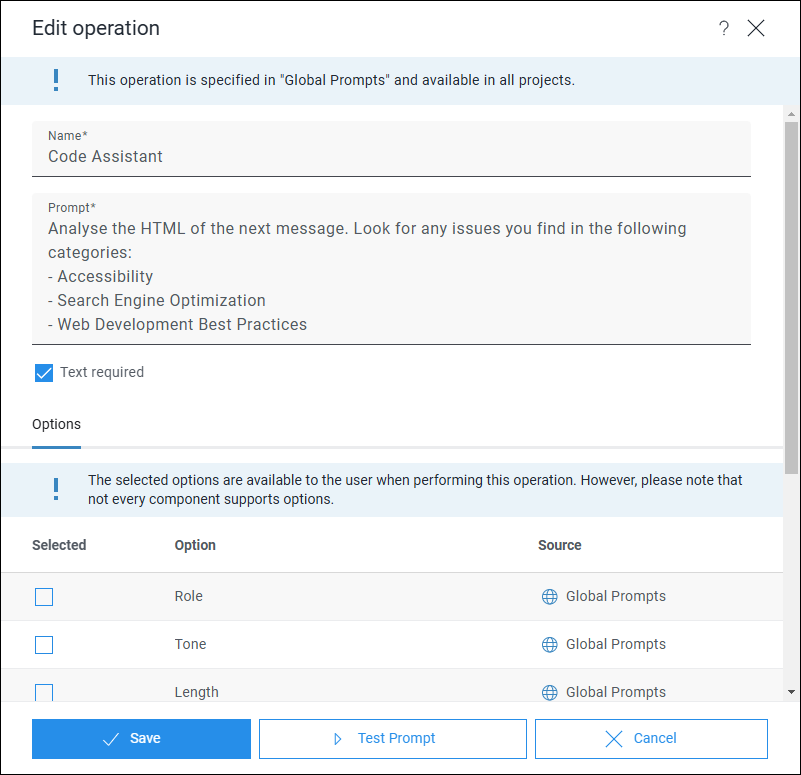
The following functions are available to you in the Edit operation dialog window:
Using the Content Assistant report panel
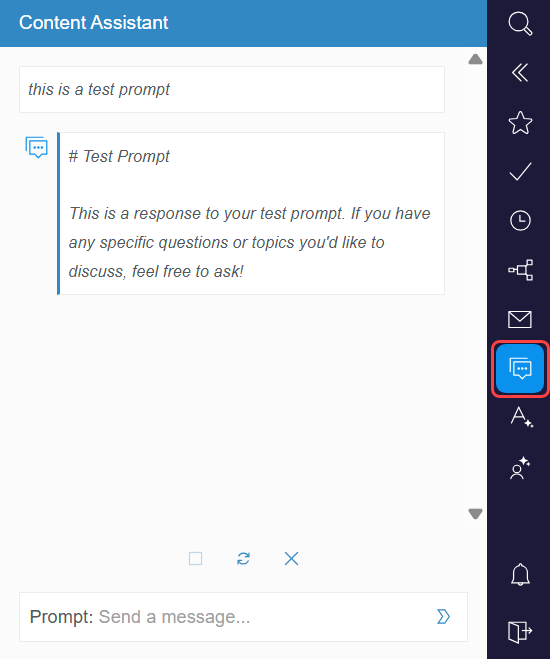
The prompt report is a chat window. Prompts are entered manually and processed by the connected model. The prompt report can be used to generate ideas on a topic or to generate text for use in the project.
- Click the Content Assistant icon to open the report panel.
- → The Content Assistant report opens on the right.
- Enter a prompt in the text field.
→ A result is generated based on your input. - Use drag and drop to move text from the report into a text field.
Preset prompts
FirstSpirit offers you the following preset prompts for use in the Content Assistant:
- Review: Checks the text for grammatical and spelling errors and improves coherence, cohesion, and readability. The semantic content of the original text remains unchanged.
- Shorten: Reduces the input text without significant content changes, resulting in a more concise version of the original.
- Expand: Extends the input text into a more detailed version without adding new information beyond the original content.
- Improve: Rewrites the text according to a specified style objective (e.g., more formal, informal, or simpler). The "Style" option guides the revision direction.
- Translate: Translates the input text into a target language while preserving the semantics and linguistic features of the original. The target language is specified via the "Language" option.
- Create: Generates a new text based on the information contained in the input, automatically considering text type, length, topic, and target audience.
Limits
The following limitations apply to the Content Assistant and the connected model:
- Output quality depends on the connected model.
- Large language models can produce incorrect or misleading information. All AI-generated content must be reviewed before publication.
- The prompt report does not perform autonomous actions across the project, such as creating or publishing pages.