

FirstSpirit AI Suite
Documentation
Connecting a model and vendor
Connect a generative AI model to FirstSpirit to enable the AI Suite. This page describes the available vendor options, how to configure the connection at the server level, and what to consider when choosing a model.
The OpenAI connector module is installed automatically with FirstSpirit. No manual module installation is required.
An API key, API URL, and model selection must be configured before the assistants can run. This configuration requires server admin access on a local FirstSpirit server. If you run FirstSpirit in the Cloud, the FirstSpirit team takes care of the configuration after an initial discussion.
Vendor options
FirstSpirit supports two native vendor connections:
- OpenAI
- Azure AI
OpenAI is the default. Azure AI is available for organisations working within a Microsoft environment and provides an alternative route to OpenAI-compatible models without a direct OpenAI connection.
To connect a different model or a self-hosted model, use the AI API via the GenerativeAIConnectorPlugin. The plugin is implemented as a module and provides the link between the FirstSpirit AI API and an external generative AI API.
Output quality also depends on the connected model. Different models produce different results for the same prompt. Select and test the model that best fits your editorial use case before rolling out to editors.
Configuring the connection
The following configuration applies to a local FirstSpirit server only. If you run FirstSpirit in the Cloud, the FirstSpirit team takes care of the configuration after an initial discussion.
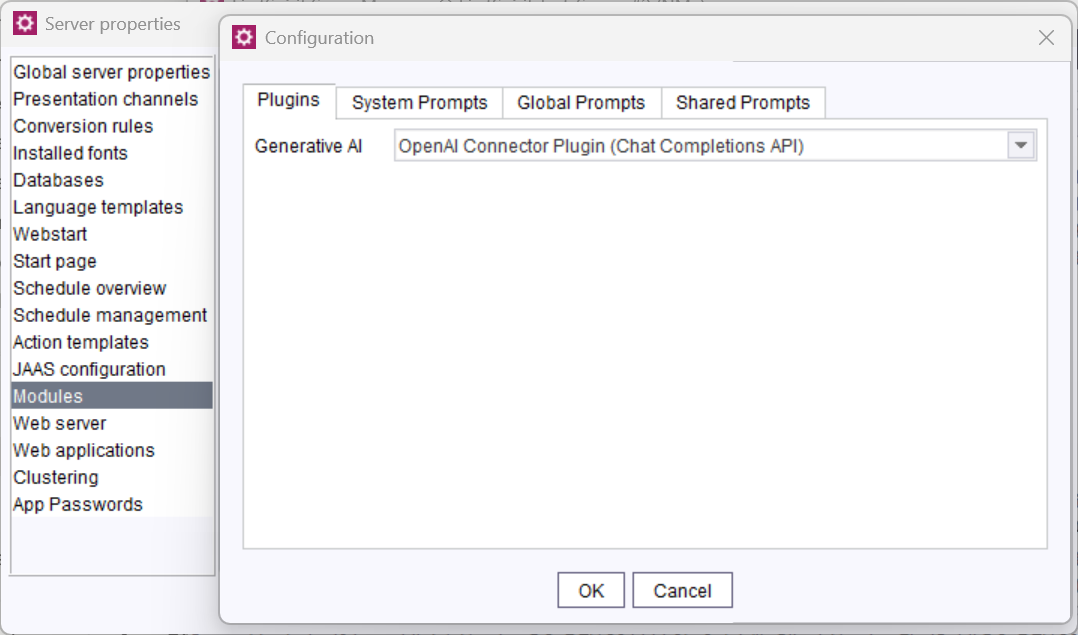
Selecting the plugin
- In the ServerManager, navigate to Server > Properties > Modules.
- Enable Show Services and search for "AI".
- Select FirstSpirit AI Configuration and click Configure.
- Under Plugins, select the standard plugin.
Configuring the endpoint
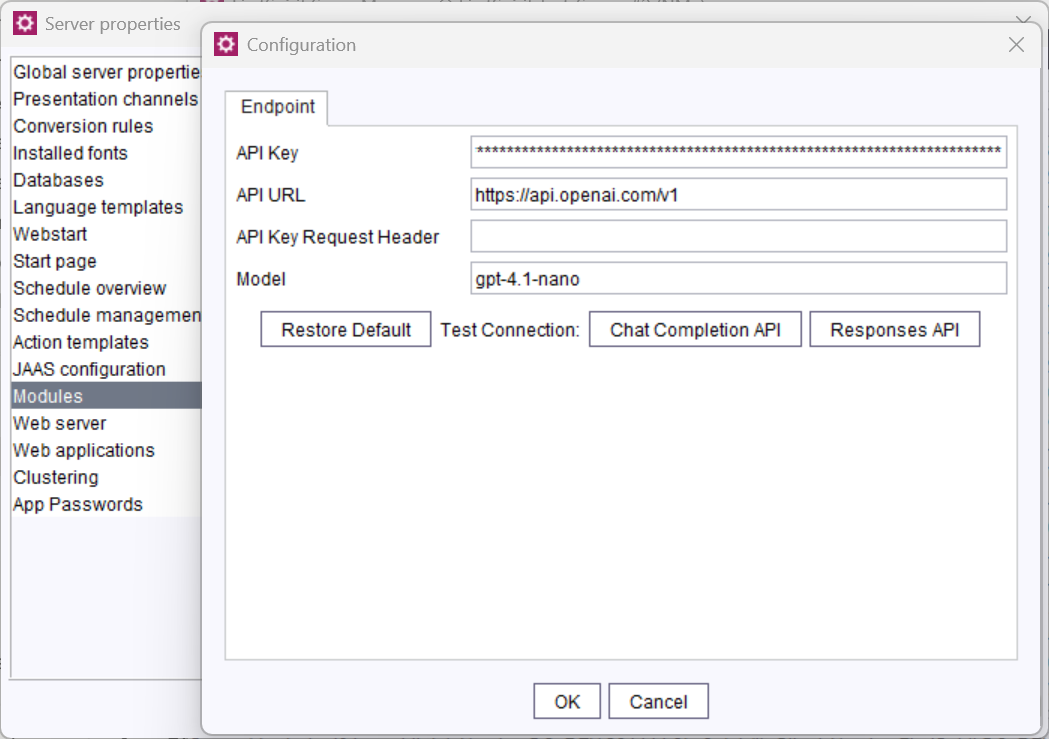
To configure the connection:
- In the ServerManager, navigate to Server > Properties > Modules.
- Enable Show Services and search for "AI".
- Select OpenAI Endpoint Configuration and click Configure.
- Provide the API Key and API URL.
- Optional: Specify the Model designation.
- Optional: Set the API Key Request Header.
- For Azure AI endpoints (azure.com): the header is pre-filled as "api-key".
- For OpenAI endpoints (openai.com): the header is empty by default (uses "Authentication").
- Click Test Connection to verify the configuration.
For other or custom models, you can establish the connection via the GenerativeAIConnectorPlugin. This plugin can be implemented as a module.
Your admin has to enable individual assistants on either server or project level (see Server configuration and Project configuration).