

FirstSpirit AI Suite
Documentation
Server configuration
This page covers the server-level configuration of the FirstSpirit AI Suite. It describes how to activate the Content Assistant for all projects on the server and how to configure assistant-specific settings.
Alternatively, assistants can be made available for individual projects.
The following configuration applies to a local FirstSpirit server only. If you run FirstSpirit in the Cloud, the FirstSpirit team will take care of server-wide configurations if requested.
The configuration of FirstSpirit AI is mandatory before any assistant can be configured or used. For more information, see Connecting a model and vendor.
Content Assistant
To make the Content Assistant available for all projects on the server:
- Open the "CXT ContentCreator: Feature Configuration Service" (Tailored UI).
ServerManager > Server > Properties > Modules > FirstSpirit CXT ContentCreator > CXT ContentCreator: Feature Configuration Service - In the Search section, find the "Report: Content Assistant" feature and click Edit.
→ The feature configuration opens.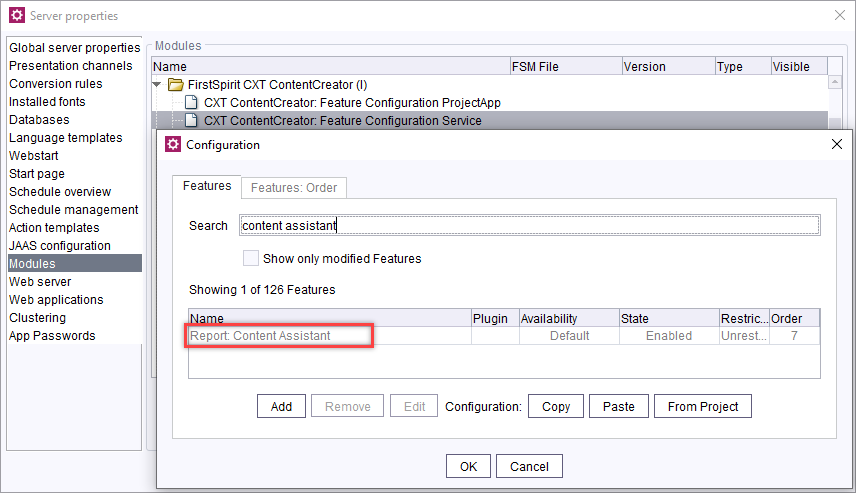
- In the Feature availability section, define the users or user groups for which the Content Assistant should be available.
- Click OK to save.
→ The Content Assistant is active for all projects on this server.
Analyze Assistant
As a server administrator, you can define how many requests are sent simultaneously when a page is analyzed. A higher number of parallel requests reduces the time required to return results:
- Navigate to the module list.
ServerManager > Server > Properties > Modules - Select the module FirstSpirit Analyze Assistant Service.
- Click Configure.
→ A new window opens.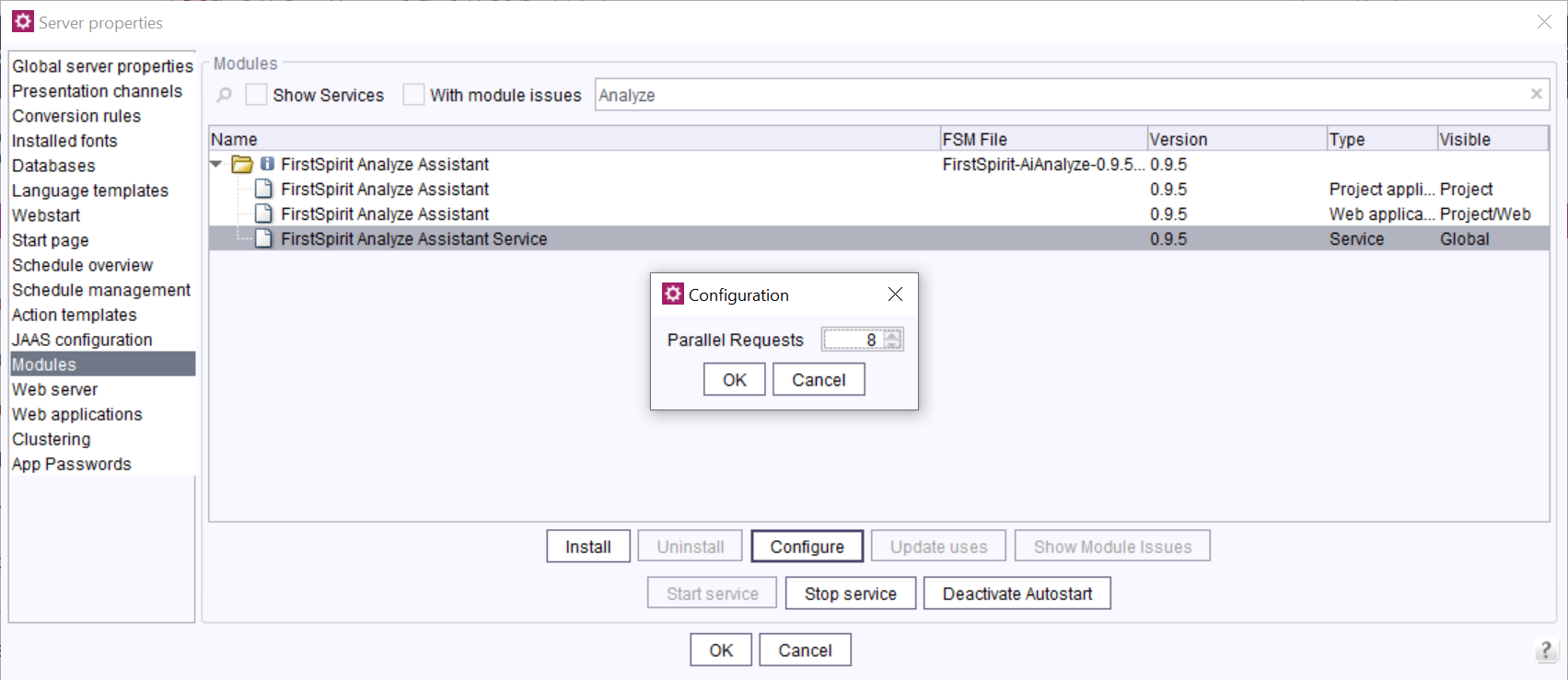
- Define the number of parallel requests.
The number of parallel requests must be between 1 and 16. By default, 8 requests are sent in parallel.
- Click OK to save your changes.
Image Assistant
To configure the Image Assistant for the server:
- Navigate to ServerManager > Server > Properties > Modules.
- Select the service FS Image Assistant - GPT Alt Text Config.
- Click Configure.
→ A new window opens.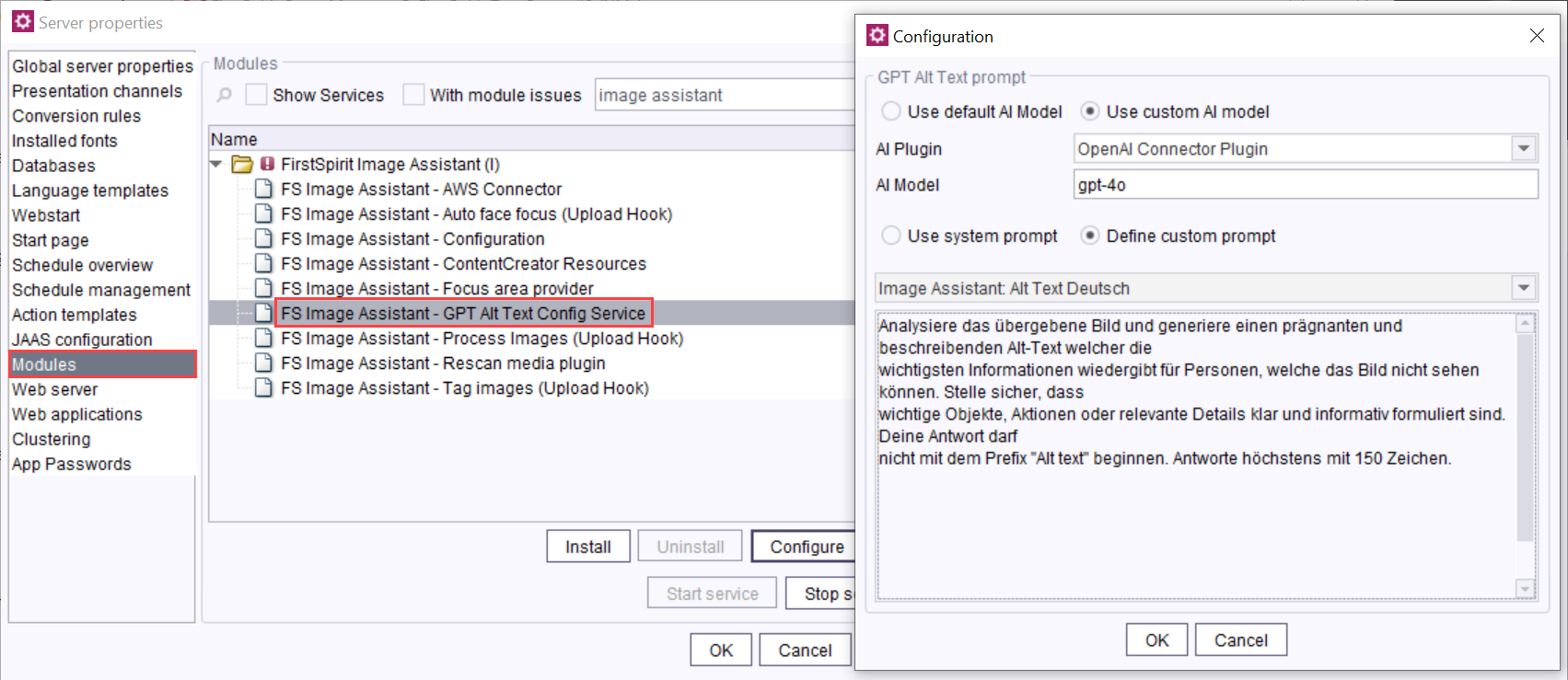
- Select one of the following options:
- Use global model: The Image Assistant uses the model configured in the FirstSpirit AI connection.
- Use individual model: Select the AI plugin and define the model to be used.
- Choose a prompt for the Image Assistant to use:
- Use system prompt
- Define custom prompt
Custom prompts for the Image Assistant can be added via the AI Configuration in the ContentCreator.
- Click OK to save.