FirstSpirit AI Suite
Documentation
Code Assistant
The Code Assistant is part of the FirstSpirit AI Suite. It analyzes output code directly in the ContentCreator and highlights areas for improvement.
The assistant comes with a preconfigured set of prompts that allow you to get started right away. To harness the full potential of the assistant, customize existing prompts or create your own.
The configuration of FirstSpirit AI is mandatory before any assistant can be configured or used. For more information, see Connecting a model and vendor.
What the Code Assistant analyzes
The Code Assistant analyzes three types of output code.
| Code type | Location in the UI | Analysis areas |
|---|---|---|
| HTML | Development Tools in ContentCreator | Accessibility; search engine optimisation; web development best practices |
| JavaScript | Media Management | Code readability and maintainability; modern JavaScript best practices; code efficiency and performance; potential bugs and logical issues; security and code safety |
| CSS | Media Management | Clean code; selector efficiency and specificity; correct usage of CSS properties and shorthands |
The Code Assistant does not generate code. It identifies improvement opportunities in existing output code.
Where to access the Code Assistant
You can use the Code Assistant in Template Development for ContentCreator:
- in full-screen view via the Code Assistant icon

- in preview via the Code Assistant icon
Analyzing code
- Open a template in the template development for ContentCreator in full-screen view or preview or a JavaScript or CSS file in the Media Management.
- Click on the Code Assistant icon.
→ The Code Assistant report opens, and the page analysis starts automatically.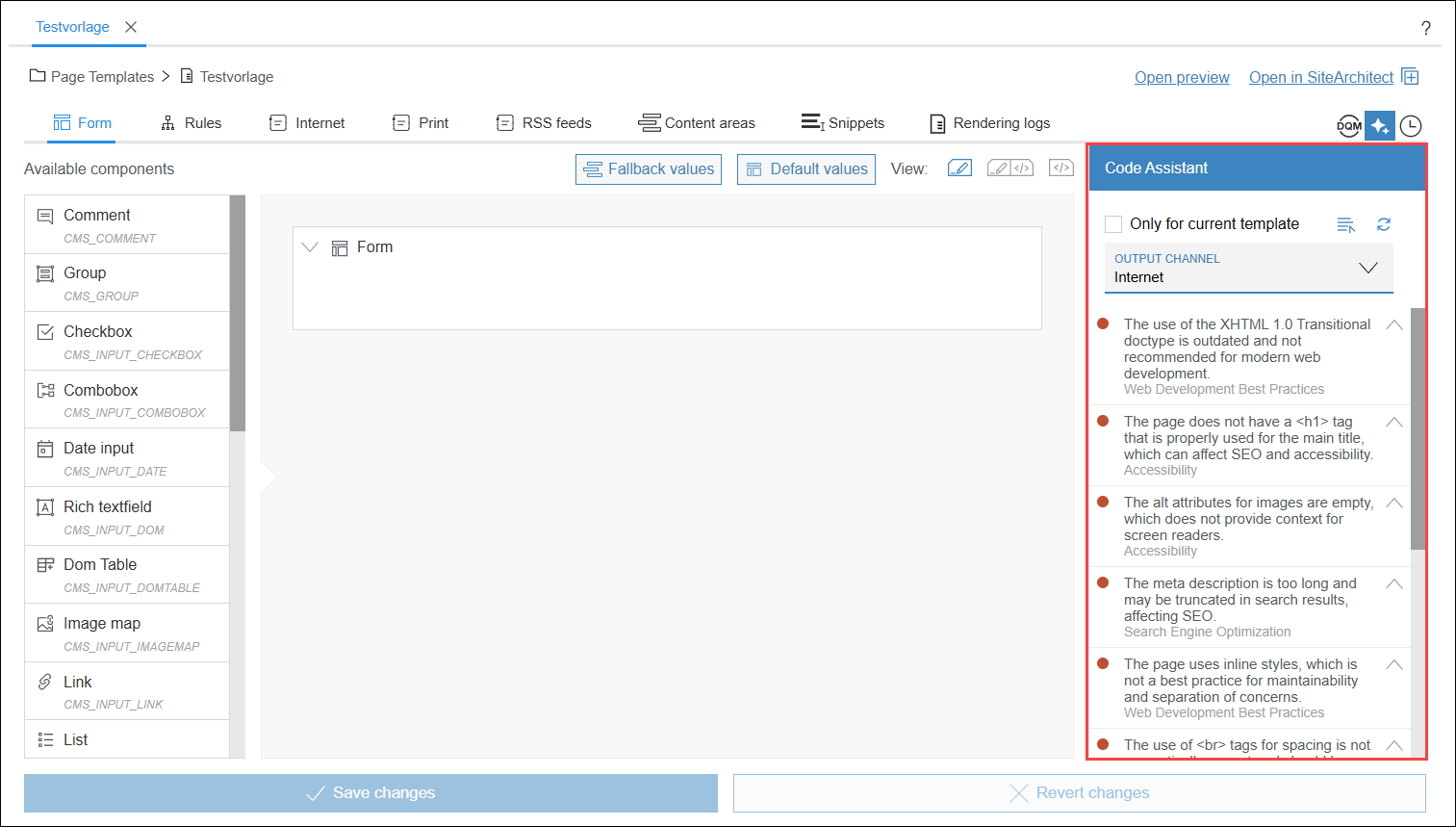
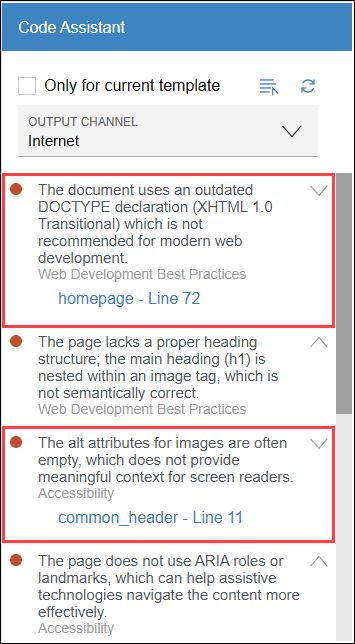
→ Entries marked with indicate issues in your code. Each entry describes an improvement opportunity as well as the category assigned to it.
 - Click on the reference name to go directly to the affected file and line.
If no improvement suggestions are displayed for the current template in Template Development in ContentCreator, uncheck Only for current template to see improvement suggestions for the entire page.
- If there are specific issues with an entry, you can expand the entry using
 .
.
→ The reference name and line number of the affected code file will be displayed.