
Release Notes
1 Administration / Modules
Improved stability of the system when running module updates during live operation
Further improvements have been made for better system stability when running module updates during live operation. In most cases, corresponding updates can be completed without having to restart the FirstSpirit Server.
Note: The increased stability of the system has been achieved through available module resources that are in use outside the module remaining online.
For example, if the classes of a module that is being updated are being used by another module, this service should be restarted subsequently.
Note: A server restart must be performed to ensure that resources from old module versions are no longer being used. A server restart is still recommended after a module update.
2 General
Code signing certificate update
In the current FirstSpirit release, the content of FirstSpirit jar files is signed with a new certificate. An update of the FirstSpirit Server is not necessary.
3 ContentCreator
Restoring deleted pages
Deleted pages can now be restored in FirstSpirit ContentCreator via the status menu.
To do this, the deleted page must first be searched for in the project history. By clicking on the corresponding entry, the page is displayed in the state in which it was deleted.
By clicking on the menu item “Revert to this version” in the status menu
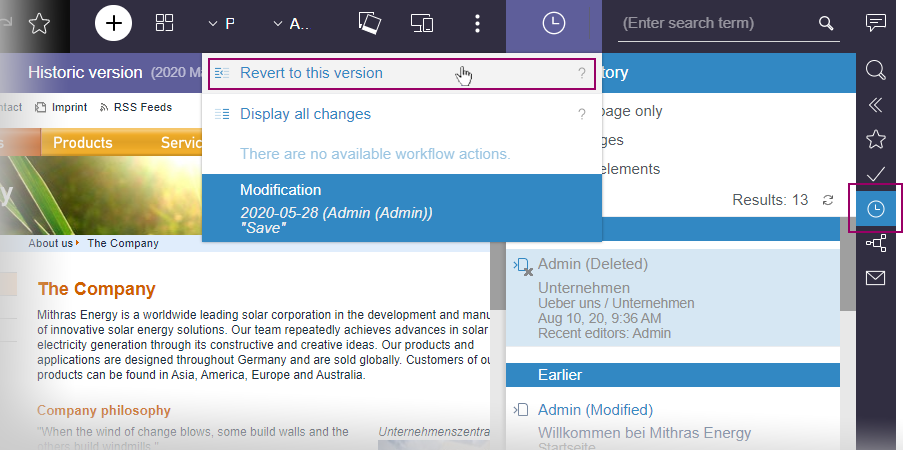
the page can be restored.
Both the page and the menu item are restored (if a menu item was available).
In combination with “BasicWorkflows” (module file basicworkflows.fsm), problems may occur when restoring.
4 External Synchronization
Transporting the Activity Status of Schedule Entries
When importing new and existing schedule entries using the “External Synchronization” function, the activity status of the schedule entries can now be transferred from the source project to the target projects.
The activity status can be managed via the command line tool FSDevTools (fs-cli) or via the FirstSpirit Developer API.
Via the command line tool FSDevTools (fs-cli):
With FSDevTools, the command line call is triggered by the --import-schedule-entry-active-state parameter.
Example:
D:\fs-cli\bin> fs-cli -h example.com [connectionparameters] import
--import-schedule-entry-active-state
If the parameter is set, the activity status of new and existing schedule entries is transferred from the source project to the target projects. For existing schedule entries, the value in the target project may be overwritten by the value from the source project.
If the parameter is not set, the activity status of new schedule entries is set to inactive (active=false) by default when you import them. Existing schedule entries remain unchanged in the target projects.
Via the FirstSpirit Developer API:
The new method setImportScheduleEntryActiveState(boolean) of the ImportOperation interface (FirstSpirit Developer API,
package de.espirit.firstspirit.store.access.nexport.operations) is used to manage the activity status of the schedule entries in the target projects.
Possible values:
- Default case,
false: If the valuefalseis set or the method is not called (standard case), the activity status is set to inactive (active=false) by default when importing new schedule entries. Existing schedule entries remain unchanged in the target projects. true: If the valuetrueis set, the activity status of new and existing schedule entries is transferred from the source project to the target projects. For existing schedule entries, the value in the target project may be overwritten by the value from the source project.
Example:
import de.espirit.firstspirit.agency.OperationAgent;
import de.espirit.firstspirit.store.access.nexport.operations.ImportOperation;
import de.espirit.firstspirit.io.FileSystemsAgent;

importOp =
context.requireSpecialist(OperationAgent.TYPE).getOperation(ImportOperation.TYPE);
fileSystem =
context.requireSpecialist(FileSystemsAgent.TYPE).getOSFileSystem("c:/fs-cli/exam/");
importOp.setImportScheduleEntryActiveState(true);
importOp.perform(fileSystem);
Further information:
- Interface ImportOperation (FirstSpirit Developer-API,
packagede.espirit.firstspirit.store.access.nexport.operations) - Import via FSDevTools
5 FirstSpirit Content Experience Tools (CXT)
5.1 "SameSite" attribute for cookies
Since the beginning of this year, many browsers have been restricting third-party cookies (“Cross site”) for security and data protection reasons: If cookies could previously be used in a third-party context by default, the attribute SameSite=None must now be set explicitly. Cookies without a SameSite attribute no longer allow third-party use.SameSite is a cookie attribute that prevents the browser from automatically sending cookies with cross-site requests and thus offers protection against cross-site request forgery (CSRF). The attribute also allows you to define which cookies can be read in which context.
The current release responds to this request for the MicroApp Framework: The MicroApp Framework uses cookies for communication between MicroApps and FragmentCreator, for example. Without the attribute SameSite=None, problems can occur if the REST API is to be used (for example, for the integration of customer-specific MicroApps), but this is on a different domain than the one the user has just opened in the browser.
Now the attribute SameSite of the CSRF token can be set for theMicroApp Framework using the parameter
cxt.platform.csrf-samesitein the web.xml file of the “FragmentCreator” module or in the cxt-fragment-creator.properties file.
By default, the value of this attribute isUnset, i.e.
cxt.platform.csrf-samesite=UnsetWith this configuration, the attribute for the cross-site cookie is not set. This corresponds to the previous behavior and as well to the state if cxt.platform.csrf-samesite is not defined.
To ensure that the MicroApp Framework can be fully used even if the REST API is used, one of the following values must be set:
- None: If no value was previously specified, the browser automatically recognized this as a third-party cookie. This enabled users to be identified across different web pages, for example. The MicroApp Framework also benefits from this functionality in some places.
In order for this behavior to continue to be possible (e.g. with Google Chrome from version 80), the attributeSameSite=Nonemust now be explicitly set.
Important:SameSite=Nonerequires a “Secure” flag. This defines that a cookie is always sent over a secure HTTPS connection. - Lax: This mode provides an appropriate balance between security and usability for websites: The cookie is only sent if the URL in the browser matches the URL stored in the cookie. However, cross-site requests are also possible if top-level navigation is performed and secure HTTP methods are used.
- Strict: The cookie is only sent if the URL in the browser matches the URL stored in the cookie. No login information is then passed on to other websites, for example, even if the user follows a link from another page or from an e-mail. This mode offers good protection against cross-site request forgery and is useful for websites with sensitive content, for example.
5.2 Latest module versions
FirstSpirit 2020-08 supports the following module versions for “FirstSpirit Content Experience Tools”:
| Module / file name | Version number |
FirstSpirit CXT DAP Bridgedataservice-[version].fsm | 1.31 |
FirstSpirit CXT FragmentCreatorfragment-creator-[version].fsm | 2.9 |
FirstSpirit Fragment DAPfragmentdap-[version].fsm | 1.27 |
FirstSpirit Media DAPmediadap-[version].fsm | 1.24* |
FirstSpirit PageRef DAPpagerefdap-[version].fsm | 1.1 |
FirstSpirit Markdown Editormarkdown-editor-[version].fsm | 1.22* |
FirstSpirit Tagging Editortagging-editor-[version].fsm | 1.22 |
FirstSpirit CXT FragmentCreator - CaaS Integrationcaas-integration-[version].fsm | 1.23 |
* These modules require FirstSpirit 2020-03 or higher from this version.
5.3 FragmentCreator: Improved handling for media upload
The component “FS_INDEX” with module “Media DAP” is used for uploading and selecting media in FragmentCreator. As of the current release, a number of improvements have been made to the user interface:
Maximum file size
Up to now, an upload was limited to a file size of up to 10 MB. Error message in the browser console: CxtElement request firstspirit-media-upload-widget/uploadMedia failed: 500.
As of the current release, the maximum file size allowed for an upload is 64 MB by default.
If media that are larger than the configured values are dropped into the corresponding dialog, this is indicated in the dialog after the drop and the media in question are not uploaded into the project when the upload process is started using the “UPLOAD” button.
If necessary, this value can be adjusted using the following parameters in the web.xml file of the “FragmentCreator” module or in the cxt-fragment-creator.properties file:
spring.servlet.multipart.max-file-size: Allowed file size for a medium uploaded via upload dialog.
The value must not be greater than the value forspring.servlet.multipart.max-request-size.
For possible size specifications, see class DataSize (Spring Framework).
Default value: 64MBspring.servlet.multipart.max-request-size: Each file is transferred in a separate HTTP request. Therefore, the value specified here must be at least as large asspring.servlet.multipart.max-file-size.
For possible size specifications, see class DataSize (Spring Framework).
Default value: 64MB
Further configuration options regarding file size for media uploads are (still) available via the FirstSpirit ServerManager under “Project properties / Media restrictions”. Settings for media sizes can also be specified there for the remote project into which media are to be uploaded using FragmentCreator, for example.
These can compete with those for the upload dialog of the FragmentCreator.
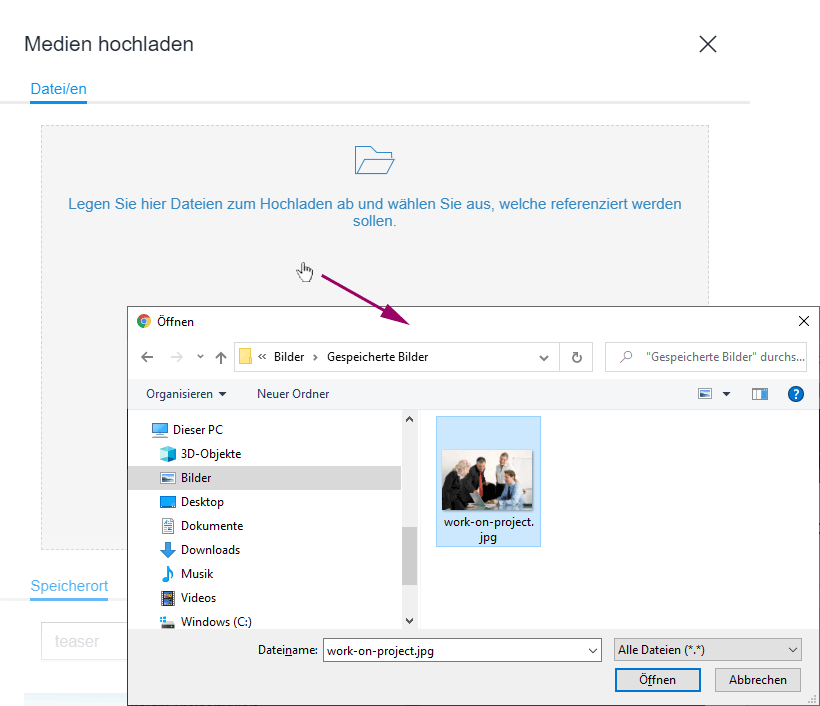
Upload via file selection dialog
Until now, media to be uploaded to the project were dragged and dropped into a corresponding dialog.
As of the current release, the media to be uploaded can now also be selected via file selection dialog. The file selection dialog can be opened by clicking into the grey area.
Upload from another browser window/tab
In addition to an upload from the workstation, images can now be dragged into the upload dialog from other browser windows/tabs.
To enable this, the server that delivers the image must allow cross-origin requests.
For more information please see
- for developers:
https://docs.e-spirit.com/odfs/edocs/cxt/templates/access-media/index.html - for editors:
https://docs.e-spirit.com/odfs/edocs/cxt/fragment-creato/input-elements/index.html#upload - for the file
web.xml:
https://docs.e-spirit.com/odfs/edocs/cxt/installation-mo/installing-modu/fragmentcreator/index.html
5.4 MicroApps: Cancel fragment creation
The MicroApp of the FragmentCreator “Create fragment” is used by the input component FS_INDEX with Fragment DAP and Tag CATEGORY, for example
<FS_INDEX name="contact" useLanguages="no">
    <LANGINFOS>
      <LANGINFO lang="*" label="Contact"/>
      <LANGINFO lang="DE" label="Ansprechpartner"/>
    </LANGINFOS>
    <SOURCE name="FirstSpiritFragmentAccess/FSFAConnector">
      <PROJECT remote="fragments">
        <CATEGORY uid="news"/>
      </PROJECT>
    </SOURCE>
</FS_INDEX>
(See also Documentation for “FirstSpirit Content Experience Tools (CXT)”, Templates / Using fragments.)
The “CREATE” button opens a window with the input elements of the fragment to be created.
If no content is entered in the input elements and the dialog is closed using the X, an (empty) fragment has been created so far (folders and pages in the Page Store).
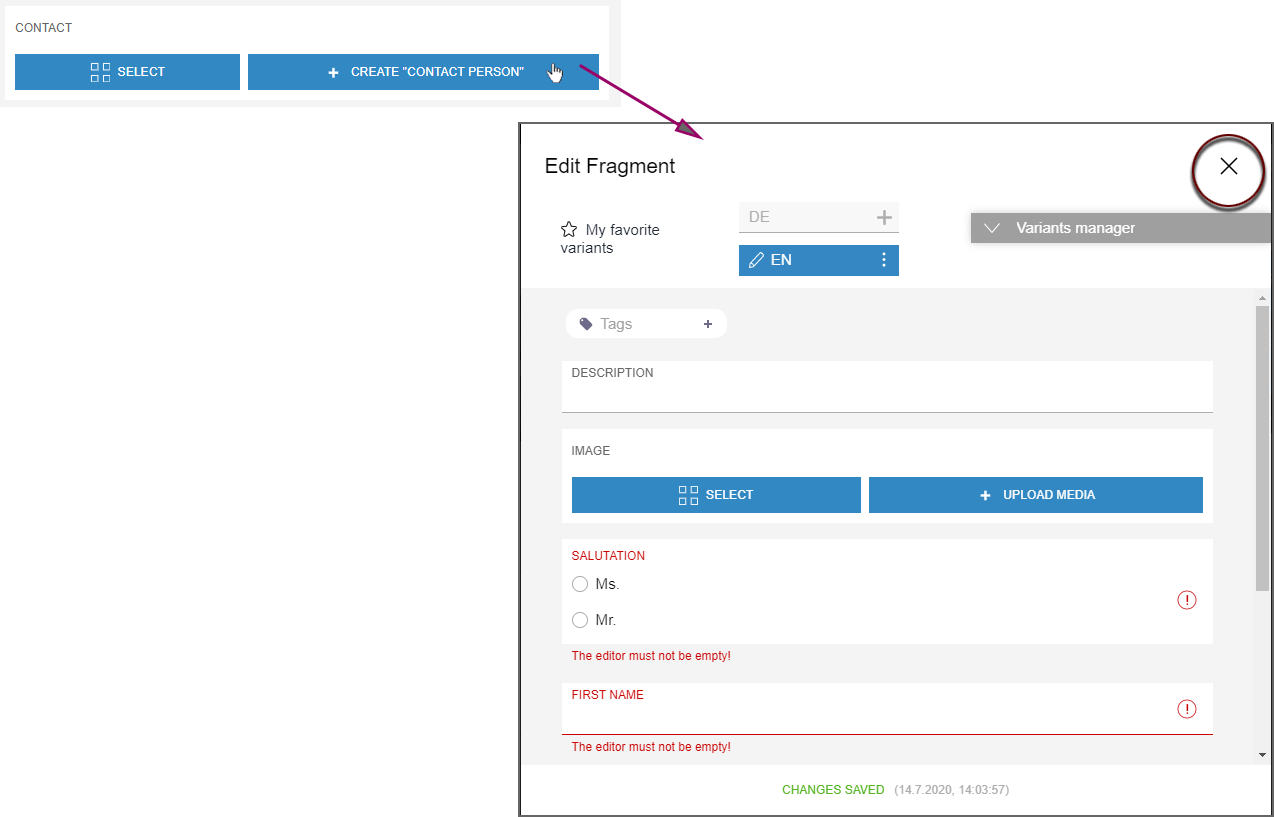
As of the current release, you can now choose whether the (empty) fragment should actually be created in the project or not.
With a click on the X the following dialog opens:
-2.png)
- If the user selects “Delete”, no data is stored in the project.
- If the user selects “Keep”, an empty fragment is created and stored in the project.
5.5 New input component for the input of numerical values: CMS_INPUT_NUMBER
In the current release, FragmentCreator also supports CMS_INPUT_NUMBER, the input component for the input of numerical values.
Example:
<CMS_INPUT_NUMBER name="number" useLanguages="no">
    <LANGINFOS>
      <LANGINFO lang="*" label="Number"/>
      <LANGINFO lang="DE" label="Zahl"/>
    </LANGINFOS>
</CMS_INPUT_NUMBER>

Integer numbers (including negatives) can be input in this input component by default. The exponential symbol E or. e is also possible, e.g., 1.7976931348623057e+308.
In addition, the type attribute can be used to control whether it should be possible to input floating-point/decimal numbers. The min and max attributes can be used to specify a value range. Invalid inputs are not saved; they are rejected and a corresponding message is displayed.
User operation varies depending on the browser being used: Google Chrome and Microsoft Edge do not permit the input of letters in the component (with the exception of the exponential symbol E or e); Mozilla Firefox and Apple Safari, on the other hand, permit this. In Microsoft Edge and Google Chrome, how decimal separators (, or .) are displayed depends primarily on the operating system language and not (only) on the browser language, whereas Mozilla Firefox takes the browser language into account. These differences are due to the implementation framework behind each individual browser and as such are out of the direct control of e-Spirit.
Moreover, the format attribute that can be used for FirstSpirit ContentCreator and SiteArchitect is not supported in FragmentCreator.
For more information, see https://docs.e-spirit.com/odfs/edocs/cxt/templates/input-component/index.html.
5.6 Status page shows registered MicroApps
The status page that can be set up for the MicroApp Framework (under ~/status) now lists all currently registered MicroApps with reachability, name and URL.
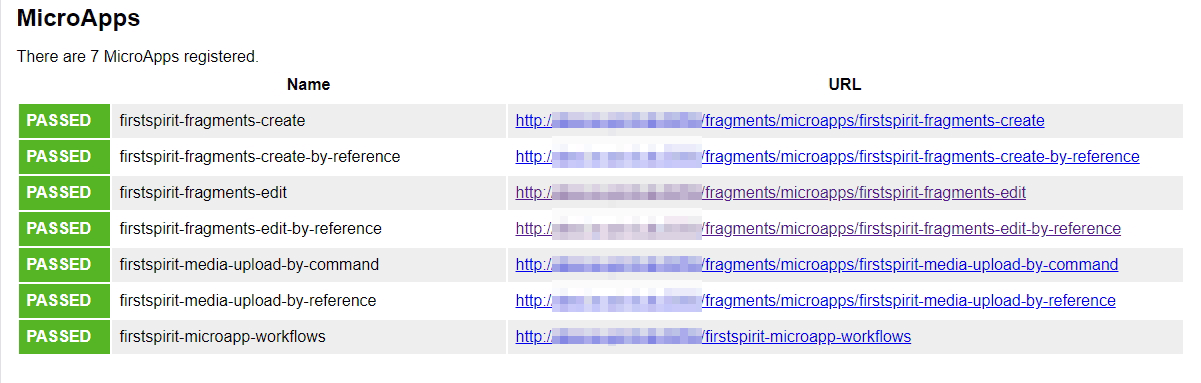
Note: To test accessibility, the status page sends an empty context to each MicroApp for verification. This can lead to warning messages like this one in the log:
de.espirit.cxt.microapps.stereotype.UnsupportedContextException: Context is not
    supported
See also the manual for the MicroApp Framework, https://docs.e-spirit.com/odfs/edocs/cxt/installation-mo/installing-modu/fragmentcreator/index.html.
6 Module Development, Scripts, API
6.1 Introduction of a new Convenience.Method "isEmpty()"
The new Convenience.Method isEmpty() has been introduced for de.espirit.common.util.Listable.
With
de.espirit.common.util
Interface Listable<T>
it is possible to use .isEmpty() to check directly whether the corresponding object is empty (return value true) or not (return value false).
6.2 Determining and returning previous store elements
With the new method getPreviousSibling() in the Interface StoreElement (package de.espirit.firstspirit.access.store, FirstSpirit Access API) the previous StoreElement can now be determined and returned starting from a StoreElement.
7 SiteArchitect / ServerManager
Update of internally used software
As of the current release, the following internally used software has been updated:
- Java (JRE with which the FirstSpirit Launcher is operated)
The new versions are:- 11.0.8+10 64bit AdoptOpenJDK
- 14.0.2+12 64bit AdoptOpenJDK
8 System
FirstSpirit Server: Release of new control files for Windows and Linux
The current FirstSpirit release now includes the definitive release of the new control files for Windows and Linux operating systems. The use of these files with immediate effect is therefore recommended in live environments.
Java and the Java Service Wrapper are required to operate a FirstSpirit Server. The Java Service Wrapper and corresponding control files are provided by e-Spirit via:
- the installation archive (for new installations) or
- the update archive (for existing installations)
Both archives are available for download (please contact Technical Support for login details).
The new control files are included in both archives. They support a range of functions that were not covered by the old control files (including install under Linux). The functional scope of the new control files can be called up in the command line via the integrated help (Usage, Command syntax, Commands), e.g., using the fs-server call (under Linux):
test@fs_example:~$ fs-server
Usage: /home/fs_example/firstspirit/bin/fs-server [ console | start | stop | restart |
 condrestart | status | install | installstart | remove | dump ]
Commands:
 console      Launch in the current console.
 start        Start in the background as a daemon process.
 stop         Stop if running as a daemon or in another console.
 restart      Stop if running and then start.
 condrestart  Restart only if already running.
 status       Query the current status.
 install      Install to start automatically when system boots.
 installstart Install and start running as a daemon process.
 remove       Uninstall.
 dump         Request a Java thread dump if running.
Control files in the installation or update archive:
- New: fs-server (for Linux)
- New: fs-server.bat (for Windows)
- Old: fs5 (for Linux)
- Old: fs5.cmd (for Windows)
The old control files are being removed. Support is scheduled to cease with FirstSpirit 2021-02.
Requirement for using the new control files:
To use the new control files, the Tanuki Java Service Wrapper must be updated to version 3.5.42. This version of the wrapper is included in the latest installation and update archive.
Additional documentation:
Overview
| ID | Description | Categories |
|---|---|---|
| CORE-9677 | With the new method |
Developer, FirstSpirit API |
| CORE-11051 | If sections are being used as “section references” in multiple locations, this is displayed in the edit dialog by the term “Usages”. The number indicates in how many locations the section is being referenced/reused. The source section is now added to the number of usages. |
ContentCreator, Editor |
| CORE-11224 | An error has been corrected which, in very rare cases, may have resulted in a |
Content Store, Editor, FirstSpirit Administrator, Sessions |
| CORE-12249 | The stability of the system when running module updates during live operation has been further improved. |
Modules |
| CORE-12281 | The API (FirstSpirit Access API, |
Corporate Content, Developer, FirstSpirit API |
| CORE-12333 | The Convenience.Method |
FirstSpirit API |
| CORE-12435 | In the current FirstSpirit release, the content of FirstSpirit jar files is signed with a new certificate. An update of the FirstSpirit Server is not necessary. Further information can be found in chapter “General: Code signing certificate update”. |
Server Administrator, ServerManager, SiteArchitect |
| CORE-12489 | A problem was fixed where SVG and WebP graphics formats could not be imported into projects using |
Developer, FSDevTools |
| CORE-12504 | When importing new and existing schedule entries using the “External Synchronization” function, the activity status of the schedule entries can now be transferred from the source project to the target projects using the command line tool FSDevTools (fs-cli) or using the FirstSpirit Developer API. |
Developer, External synchronization, FirstSpirit API, Tasks |
| CORE-12561 | Update of internally used software. |
Integrated software, Java, Launcher |
| CORE-12567 | A problem has been solved when closing remote connections to other projects. This problem in some cases had negative effects on the main connection. |
Developer |
| CORE-12598 | The current FirstSpirit release includes the definitive release of the new control files for Windows and Linux operating systems. The old control files are being removed. |
Launcher, Server Administrator |
| CXT-726 | As of the current release, the creation of empty fragments via MicroApp can now be prevented. |
Editor, FirstSpirit Content Experience Tools (CXT), FragmentCreator |
| CXT-1306 | Some improvements have been made in the FragmentCreator media upload for the user: For example, the maximum file size that should be allowed for a media upload has now been increased to 64 MB, and the size can be configured by the administrator. In addition, files can now be selected via file selection dialog and drag-and-drop of images from another browser window/tab is possible. |
Developer, Editor, FirstSpirit Administrator, FirstSpirit Content Experience Tools (CXT), FragmentCreator, Media, Media Store |
| CXT-1503 | The preview is now reloaded automatically following changes to the structure of the navigation view (moving pages) so that the changes are visible immediately in the preview. Previously the preview had to be updated manually in some cases. |
ContentCreator, Editor |
| CXT-1547 | The “hidden” attribute is now also correctly evaluated in the metadata for corresponding input components in the FragmentCreator. |
Developer, FirstSpirit Content Experience Tools (CXT), FragmentCreator, Input Components |
| CXT-1572 | New input component for the input of numerical values: CMS_INPUT_NUMBER |
Developer, Editor, FirstSpirit Content Experience Tools (CXT), FragmentCreator, Input Components |
| CXT-1607 | The status page under |
Debugging, Developer, FirstSpirit Content Experience Tools (CXT) |
| CXT-1654 | Deleted pages can now be conveniently restored in FirstSpirit ContentCreator via the status menu Further information can be found in chapter “ContentCreator: Restoring deleted pages”. |
ContentCreator, Editor |
| CXT-1691 | In some cases, error messages displayed in FirstSpirit ContentCreator were not meaningful enough. Now the error text shows the actual cause of the error. |
ContentCreator, Debugging, Developer, Editor |
| CXT-1749 | FirstSpirit Content Experience Tools: Latest module versions |
Developer, FirstSpirit Administrator, FirstSpirit Content Experience Tools (CXT), FragmentCreator, Modules, Server Administrator, ServerManager |
| CXT-1757 | As of the current release, the attribute |
Developer, FirstSpirit Administrator, FirstSpirit Content Experience Tools (CXT), FragmentCreator, Modules, Security |
Deprecations
| Functionality | Deprecated as of | Will be removed / Was removed as of |
|---|---|---|
| Input component CMS_INPUT_CONTENTAREALIST | 5.2R3 | |
| Input component CMS_INPUT_CONTENTLIST | 5.2R3 | |
| Input component CMS_INPUT_FILE | 5.2R3 | |
| Input component CMS_INPUT_LINKLIST | 5.2R3 | |
| Input component CMS_INPUT_OBJECTCHOOSER | 5.2R3 | |
| Input component CMS_INPUT_PAGEREF | 5.2R3 | |
| Input component CMS_INPUT_PICTURE | 5.2R3 | |
| Input component CMS_INPUT_TABLIST | 5.2R3 | |
| FirstSpirit Access API: de.espirit.firstspirit.agency.GroupsAgent | 5.2R15 | |
| FirstSpirit Access API: delete (de.espirit.firstspirit.access.AccessUtil) | 5.2R18 | |
| FirstSpirit Access API: release (de.espirit.firstspirit.access.AccessUtil) | 2018-06 | |
| FirstSpirit Access API: getLastLoginAsDate (de.espirit.firstspirit.agency.UserStatisticsAgent) | 2018-07 | |
| FirstSpirit Access API: remainingDurationOfCurrentStageInMillis (de.espirit.firstspirit.server.MaintenanceModeInfo) | 2018-07 | 2025-13 |
| FirstSpirit Access API: getStartingTimeOfStageAsDate (de.espirit.firstspirit.server.MaintenanceModeInfo) | 2018-07 | 2025-13 |
| FirstSpirit Access API: getSelectedWebserverConfiguration (de.espirit.firstspirit.access.serverConfiguration) | 2018-10 | 2025-13 |
| FirstSpirit Access API: setSelectedWebserverConfiguration (de.espirit.firstspirit.access.serverConfiguration) | 2018-10 | 2025-13 |
| FirstSpirit Access API: getSelectedWebServer (de.espirit.firstspirit.access.project.Project) | 2018-10 | 2025-13 |
| FirstSpirit Access API: setSelectedWebServer (de.espirit.firstspirit.access.project.Project) | 2018-10 | 2025-13 |
| FirstSpirit Access API: getLostAndFoundStoreNodes(); (de.espirit.firstspirit.feature.FeatureInstallResult) | 2018-10 | |
| FirstSpirit Access API: getDeletedStoreNodes(); (de.espirit.firstspirit.feature.FeatureInstallResult) | 2018-10 | |
| FirstSpirit Access API: de.espirit.firstspirit.access.store.Previewable | 2019-01 | |
| WebSphere Application Server support for FirstSpirit | 2019-05 | |
| Legacy mode for the FirstSpirit server | 2019-06 | 2022-03 |
| Control files for Windows and Linux operating systems (old) | 2020-08 | 2021-02 |