
Release Notes
1 Administration
Automatic start for all services (fs-server.conf)
A FirstSpirit service is a server component that can be activated via a public interface made of input components or scripts.
Starting and stopping services
Services can be started automatically when the server is started:
- via the Autostart option in ServerManager or
- via the Autostart option in ServerMonitoring or
- by configuring the SERVICES parameter in the
fs-server.confconfiguration file
Services can also be started and stopped manually at any time:
- via Start service / Stop service in ServerManager
- via Start service / Stop service in ServerMonitoring
New configuration option for starting all services automatically
The latest FirstSpirit release provides a new option for starting services automatically. The * character can now be used in the SERVICES parameter within the fs-server.conf configuration file:
SERVICES=*In this case, the FirstSpirit Server starts all the services installed on the server automatically when the server itself starts, i.e.:
- FirstSpirit's proprietary system services, e.g., the permission service
- Services that have been installed on the FirstSpirit Server via a module
Advantage: Services cannot be forgotten or overlooked, which would then cause problems during subsequent operation (after starting the server).
IfSERVICES=* is configured in the fs-server.conf configuration file, it is no longer possible to configure the Autostart option in ServerManager (this is the option for activating and deactivating individual services automatically).If it is not desirable to start all services automatically, e-Spirit recommends activating the services that are to be started via the Autostart option in ServerManager or the Autostart option in ServerMonitoring.
2 Administration / Modules
Configuration of environment variables for FirstSpirit Launcher
Very occasionally, it may be necessary to pass not all of the environment variables that have been defined in the operating system to the Java VM of the Launcher. These specific special cases can now be configured in the ~/AppData/Local/Programs/FSLauncher/FSLauncher.vmoptions file using the new parameter -DclientEnvironmentVariablesIgnoreList. All the environment variables that are not to be passed to the Java VM of the Launcher are defined in a list, with each item separated by a comma.
Example configuration:
-DclientEnvironmentVariablesIgnoreList=JAVA_TOOL_OPTIONS,_JAVA_OPTIONS,IBM_JAVA_OPTIONSIf the parameter is not specified, all the environment variables are passed to the Java VM.
Note: The configuration is imported one time, when the FirstSpirit Launcher application is started. Therefore any changes to the configuration are not taken into account until after FirstSpirit Launcher restarts.3 General
Outlook: Support for OpenJDK 15
For FirstSpirit, e-Spirit supports:
- OpenJDK: the current Java version as well as the latest LTS (Long-Term-Support) variant.
- Oracle Java: only the latest LTS (Long-Term-Support) variant.
This applies to both the FirstSpirit Server and the FirstSpirit desktop applications.
These are for the current FirstSpirit version:
- Oracle Java 11 (in the current version)
- OpenJDK 14 (in the current version)
- OpenJDK 11 (in the current version)
In September 2020 e-Spirit started the test phase for the use of OpenJDK 15 (non-LTS; Release Date 2020/09) with FirstSpirit. During this phase, the FirstSpirit desktop applications (SiteArchitect, ServerManager) and the FirstSpirit server will be subject to intensive internal testing. Compared to previous version updates, OpenJDK 15 requires extensive changes. We currently expect to release FirstSpirit version 2020/11 with support for OpenJDK 15.
With the support for OpenJDK 15, the support for OpenJDK 14 (non-LTS; Release Date 2020/03) expires. (FirstSpirit is expected to remain functional with OpenJDK 14. However, e-Spirit AG will neither carry out tests with OpenJDK 14 nor implement any measures designed to eliminate errors or problems that are exclusively associated with the use of OpenJDK 14.
Further documentation see FirstSpirit: Technical requirements and recommendations.
4 ContentCreator
4.1 "Tailored UI": Hiding features in ContentCreator
In the latest release, features can be hidden for specific projects in ContentCreator, e.g., individual icons in the preview for editing sections, menu features such as “Create new page” or Reports.
In this way, functions that are not needed or should not be used can be completely disabled for a project. Depending on the project requirements, the ContentCreator interface can thus be made clearer and easier for the user to operate. Incorrect operation can also be minimized or prevented simply by hiding functions.
Likewise, standard functions can be replaced more easily by customer-specific implementations with their own logic or user guidance, which thus fit more harmoniously into the ContentCreator interface.
The actions to be hidden are configured using a system module (“FirstSpirit CXT ContentCreator Extension”), which is included with FirstSpirit by default.
This new functionality must be activated via the FirstSpirit ServerManager in order to use it:
1) Under “Server properties / Web applications” / “ContentCreator” tab:
Adding the web component
CXT ContentCreator Extension: WebApp for ContentCreatorIf there are ContentCreator instances that are local to a project, the web component must be added there too.
(“ContentCreator instance that is local to a project” = a web server has been configured on the “ContentCreator” tab under “Project properties / Web components”.)
A ContentCreator instance that is local to a project is added under “Project properties / Web components” / “ContentCreator” tab.
2) Under “Project properties / Project components”:
Adding the project component
CXT ContentCreator Extension: Feature ConfigurationThis project component can be used to configure the availability of features via a list. The list always includes the ContentCreator standard features:
.png)
A distinction must be made between those features that are represented graphically (e.g., icon, button, menu item) and those that are not (e.g., activating InEdit using Ctrl + click, moving folders in a tree view, uploading media using drag-and-drop).
To deactivate (or activate) a feature, the user can search for it in the search field.
The list displays those features whose default availability has been modified first. The user can also set a filter to display these features by selecting the “Show only modified Features” checkbox.
Features whose default availability has not been modified are sorted by group to make things clearer.
The following default groups are available:
MediaManagement(Media Store/Media Management)Navigation(Navigation bar)Preview(Preview: EasyEdit, InEdit, etc.)Report(Report bar)Status(Status display)StoreTree(Tree view, e.g., in the navigation bar or Media Management)Toolbar(Menu bar)
Clicking “Edit” or double-clicking a feature opens a window where the user can configure availability:
.png)
Available: The feature is available and can be used.Unavailable: The function is not available and cannot be used.
Such features that are represented graphically are hidden on the user interface.
If features that are not represented graphically are used, a corresponding message saying the feature concerned is deactivated appears in ContentCreator.Default Availability: The default setting applies to this feature.Disabled: Features that are represented graphically are still displayed on the user interface, although they are grayed out and cannot be used.
If features that are not represented graphically are used, a corresponding message saying the feature concerned is deactivated appears in ContentCreator.
This option overrides the setting of the options mentioned previously, i.e., even if a feature is available, it cannot be used ifDisabledis set.
It is also possible to configure the availability of features originating from customer-specific modules.
This currently affects modules that implement the de.espirit.firstspirit.client.plugin.ItemsPlugin interface (FirstSpirit Developer API). In future, however, the configuration option will be extended to features from other types of module/plugin too.
Click “Add” to open this window:
.png)
Group: Optional specification of a group to which the feature belongs. This is currently only supported for ContentCreator standard features, so the field should not be completed at the moment.Identifier: Specify an identifier for the feature here.
This is either defined explicitly via the optionalItemIdentifiableinterface (de.espirit.firstspirit.client.plugin.ItemIdentifiable, FirstSpirit Developer API) or it is the class name of the item implementation (de.espirit.firstspirit.client.plugin.Item, FirstSpirit Developer API).Plugin: Specify the class name of the public component here.Context: Specify the context of the feature concerned here.
For features that implement theItemsPlugininterface (de.espirit.firstspirit.client.plugin.ItemsPlugin, FirstSpirit Developer API),Contextrelates to theBaseContext(de.espirit.firstspirit.access.BaseContext, FirstSpirit Developer API) that is transferred to the plugin as the context. For other features,Contextis usuallyVoid(“not available”).
The dropdown list provides a selection of familiar types. User-defined contexts can also be entered manually.
Availability can be configured using the options described above (Available, Unavailable, Default Availability, Disabled).
If required, project-specific features can be removed again using “Remove”.
Note: The features included with ContentCreator as standard cannot be removed.
To activate changes to the configuration in the relevant project, editors will need to restart the project (e.g., via the “Change project” menu item).
A new API was created as part of this functionality. It is being tested in-house at the moment and will be made available to and enabled for all customers in a future release.
Note: The availability of features can only be influenced for specific projects using this module. If features are to be deactivated for specific users or areas (e.g., for a page or a subtree), appropriate permissions and/or a suitable API must be used.
4.2 Navigation view: Selecting the language
The navigation view can be displayed on the left side of the ContentCreator screen.
As of the current release, the desired language can now also be selected in the “Navigation” area:
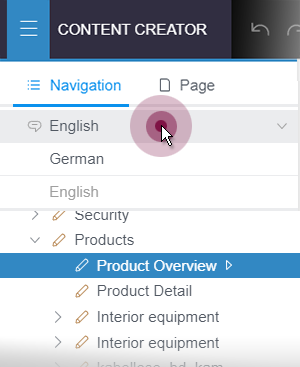
Both the labels of the tree items (menu items and pages) and the contents of the preview and in the reports are displayed in the language selected via the drop-down list.
4.3 SmartCropping: "Beta" status for intelligent image cropping
With FirstSpirit 2020-07, the ramp-up phase for the new ContentCreator functionality “SmartCropping” has started. Since then the functionality has been tested by selected customers and partners.
“SmartCropping” largely eliminates the need for editors to check and edit individual image variants (in FirstSpirit: “Resolutions”) when uploading new images: Intelligent technology allows a suitable section to be selected manually and simultaneously for all resolutions of an image. To do this, a suitable crop is automatically calculated for each resolution using an area that the editor can determine in the image as the main motif using a selection frame (“Focus area”). Here, the “Golden Ratio” is applied: This ensures that the image composition appears organically and harmoniously proportioned instead of rigid and constructed.
With the current release, e-Spirit is expanding the user circle to obtain further feedback and insights from partners and clients on the functionality that results from concrete use cases.
The functionality itself has already been subjected to intensive quality assurance. However, it has not yet been officially released. So, if you are interested, we recommend that you first test it in a development environment.
To activate the functionality, the following entry must be made in the fs-server.conf configuration file:
webedit.eap.focuscrop=trueThis activates the “SmartCropping” function on the entire server and is available in every project.
The “SmartCropping” function can be accessed in the ContentCreator via the icon
.png)
on images in the Media management or (if configured accordingly, “editorId”) on images in the preview.
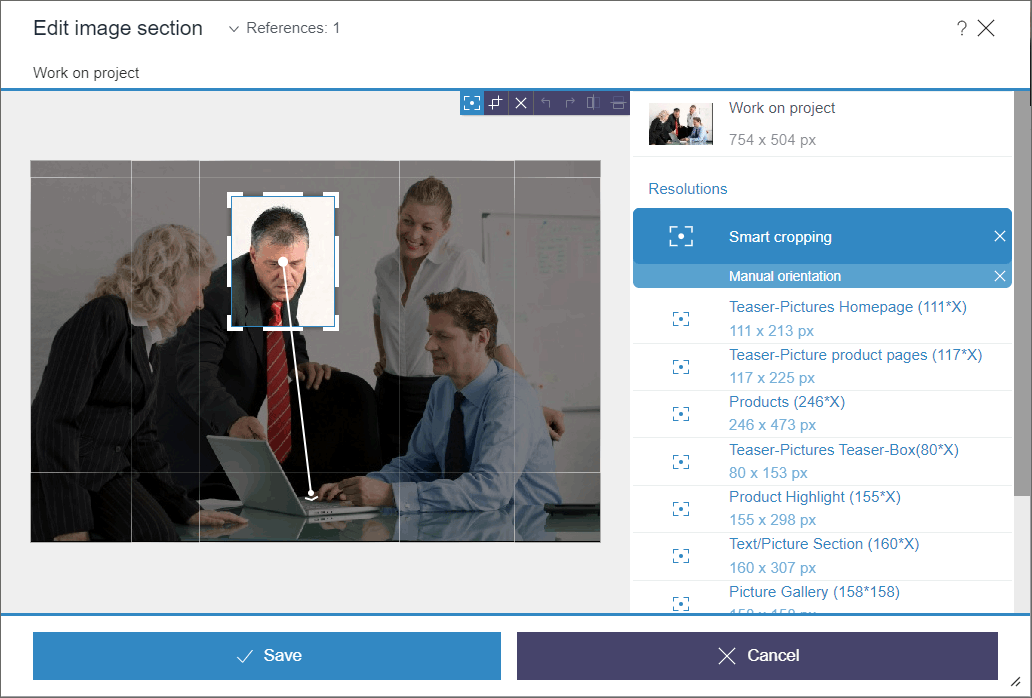
As before, the resolutions for an image are automatically calculated by the system by default. They are marked with this icon:
.png)
On mouseover, the editing options bar appears above the image.
Appropriate image areas for all automatically calculated resolutions can be defined as follows:
- Draw a frame over the main motif in the image with the mouse pointer.
- Further frames show for a rough check how the cropping affects the other resolutions.
- Move, enlarge/reduce the frame so that a suitable area is selected for all resolutions.
- With the viewing angle handle, the automatically calculated cuts can be extended in a certain viewing direction based on the focus area.
- If the result is as desired for all resolutions, it can be saved.
For fine tuning, the effect can be checked individually for each resolution.
To do this, simply hold the mouse pointer over the desired resolution.
With one click the resolution is selected. For this, a suitable area can be selected manually by means of a frame (“Manual cropping”).
You can easily reset cuttings with the icons
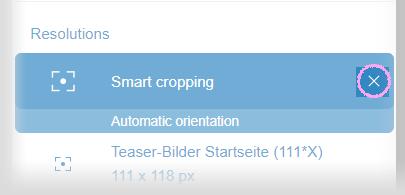
List of resolutions
or

Image editing options (at mouseover)
More detailed documentation will be provided with FirstSpirit 2020-11. Operation by editors is intuitive, since the result of a cut is directly visible and checkable and can be reset.
For questions and feedback please contact your responsible contact person.
4.4 Language dependent assignment of page names
FirstSpirit consistently supports the concept of multilingualism, which runs through all aspects of FirstSpirit.
Among other things, a distinction is made between
- Project languages: Languages for which content is to be created and stored by editors. In elements such as sections, datasets and media, language-dependent content can be entered, which can then be output on a website in different language variants, for example. To enter this content, you can switch between the project languages in forms.
Project languages are defined in the project properties (FirstSpirit ServerManager) in the “Languages” area. - Editorial languages: Language that is used to label input elements in forms/dialogues.
Editorial languages are defined in the project properties (FirstSpirit ServerManager) in the “Options” area, “Configure editorial languages”.
Language-dependent names for pages can be assigned in the ContentCreator in the following places:
- function “Create new page” in the menu bar
- function “Rename” in the navigation bar
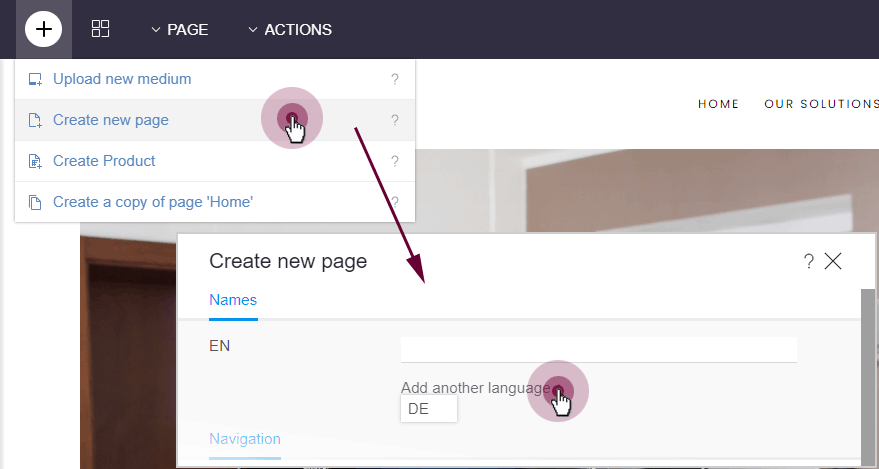
Dialogue "Create new page"
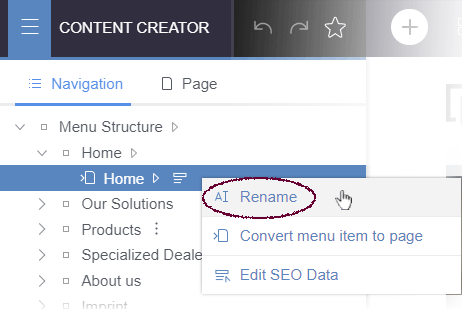
Navigation bar: "Rename"
As of the current release, all project languages are now available there. Previously, page names could only be assigned for the editorial languages.
In certain language configurations this could lead to problems.
Error message:
...
java.lang.IllegalArgumentException: invalid language 'ES'
...
The navigation bar shows the Site Store of a project.
Whereas previously the name for the menu item (technically: “menu level”) and the for the dependent page (technically: “page reference”) was changed simultaneously when renaming, this can now be done for each element individually. This means: If menu item and page are to be renamed, this must now be done separately for both elements. Previously, renaming the menu item or page was sufficient.
If the project is configured accordingly (“Store Mapping”, see also Documentation for Administrators), the display names of the respective pages are also renamed in the Page Store.
5 External Synchronization
Servlet zone support for FSDevTools
The FSDevTools command line tool simplifies export and import operations between a FirstSpirit project and the file system using predefined commands. The current FSDevTools release (release 2.6.3) supports the specification of a servlet zone for connecting to the FirstSpirit Server. The parameter:
--servletzone (short form: -sz)
is transferred via the command line as an option.
Example call:
fs-cli -h example.com -port 4242 -c HTTP -sz "/examplezone" [...]Log output if the call is successful, e.g.:
User: userA
Host: example.com
Port: 4242
Servlet zone: /examplezone
Connection Mode: HTTP
Project: DevProject
Connection to FirstSpirit closed!
Execution time: 10.591s
6 FirstSpirit Content Experience Tools (CXT)
Latest module versions
FirstSpirit 2020-10 supports the following module versions for “FirstSpirit Content Experience Tools”:
| Module / file name | Version number |
FirstSpirit CXT DAP Bridgedataservice-[version].fsm | 1.33 |
FirstSpirit CXT FragmentCreatorfragment-creator-[version].fsm | 2.11 |
FirstSpirit Fragment DAPfragmentdap-[version].fsm | 1.28 |
FirstSpirit Media DAPmediadap-[version].fsm | 1.25* |
FirstSpirit PageRef DAPpagerefdap-[version].fsm | 1.2 |
FirstSpirit Markdown Editormarkdown-editor-[version].fsm | 1.23* |
FirstSpirit Tagging Editortagging-editor-[version].fsm | 1.23 |
FirstSpirit CXT FragmentCreator - CaaS Integrationcaas-integration-[version].fsm | 1.24 |
* These modules require FirstSpirit 2020-03 or higher from this version.
7 Search
Improved search behavior for datasets in the ContentCreator
An error has been fixed that caused searches in the ContentCreator to only find dataset contents that already were available when the ContentCreator session was started. Changes to data sets that were executed at a later time in other sessions were not taken into account. With the current version FirstSpirit can find new or modified datasets with every search.
8 System
Updates to integrated third-party software
The following internal software has been updated in the latest FirstSpirit release:
Google Web Toolkit (“GWT”, used for ContentCreator)
Update from version 2.8.2 to 2.9.0
Apache FOP (Formatting Objects Processor)
Via the module fs-fop.fsm (for the output of FirstSpirit content in PDF format).
Updated from version 2.4 to version 2.5.
Eclipse Jetty (contained in the module fs-jetty.fsm / “FirstSpirit Jetty Service”)
Update from version 9.4.28 to version 9.4.31
Pack200 for use in FirstSpirit Launcher removed (JAR packing tool)
The Pack200 compression of JAR files transferred from the server to the user's computer when the FirstSpirit desktop applications are launched, has now also been removed in the FirstSpirit Launcher. (The removal in FirstSpirit has already been implemented with FirstSpirit 2020-03).
If the FirstSpirit desktop applications are started via the FirstSpirit Launcher, the uncompressed JARs are now transferred.
9 Template development
CMS_INPUT_DATE : JSON output now considers TIME and DATE modes
When outputting a date using the JSON function, TIME and DATE modes are now also considered separately for date fields.
The mode is included in the output of the CMS_INPUT_DATE input component as well, e.g., for DATETIME mode:
"datetime": {
             "fsType": "CMS_INPUT_DATE",
             "name": "datetime",
             "value": "2020-10-01T09:51:12Z",
             "mode": "DATETIME"
}If the value of the input component CMS_INPUT_DATE is printed for TIME or DATE mode, then the entered time is printed with no further adjustments. For compatibility reasons the time is still represented in UTC.
Examples:
- 1.10.2020: “2020-10-01T00:00Z”
- 6:51pm: “1970-01-01T18:51:16Z”
If the value of the input component CMS_INPUT_DATE is printed for DATETIME mode, then the entered time is converted to the time zone UTC.
Examples:
- Berlin: 1.10.2020 21:00 h:
“2020-10-01T19:00:00.000Z” - New York: 1.10.2020 21:00 h:
“2020-10-02T01:00:00.000Z” - Tokyo: 1.10.2020 21:00 h:
“2020-10-01T13:00:00.000Z”
Overview
| ID | Description | Categories |
|---|---|---|
| CORE-9560 | Hiding features in ContentCreator |
ContentCreator, Developer, FirstSpirit Administrator, ServerManager |
| CORE-11616 | The latest FirstSpirit release provides a new option for starting services automatically. The |
Modules, Server Administrator, Services |
| CORE-12036 | Very occasionally, an error message of type |
Archiving, Server Administrator |
| CORE-12284 | An error has been fixed that caused searches in the ContentCreator to only find dataset contents that already were available when the ContentCreator session was started. Changes to data sets that were executed at a later time in other sessions were not taken into account. With the current version FirstSpirit can find new or modified datasets with every search. |
Content Store, ContentCreator, Editor, Search |
| CORE-12392 | Internal software has been updated in the latest FirstSpirit release. Further information can be found in chapter “System: Updates to integrated third-party software”. |
ContentCreator, Developer, FirstSpirit Administrator, FirstSpirit Jetty Web Server, Integrated software, Launcher |
| CORE-12455 | An error has been rectified which caused the current state, not the configured release state, to be transported when datasets were transported using Content Transport. |
Content Transport |
| CORE-12474 | An error has been rectified which, very occasionally, led to the actions of an executed schedule being displayed in the wrong order in both ServerManager and ServerMonitoring. |
FirstSpirit Administrator, ServerManager, ServerMonitoring, Tasks |
| CORE-12699 | FirstSpirit web applications (e.g., FirstSpirit start page, ContentCreator) now respond more stably when the FirstSpirit protocol or the FirstSpirit signatures are changed. Changes like this no longer cause serious problems when the web applications are updated. |
FirstSpirit Administrator |
| CORE-12780 | The |
Launcher |
| CORE-12806 | The VersionInfo object returned by the |
Developer, FirstSpirit API, Isolated mode, Module development |
| CORE-12823 | To be able to view the values independent of time zones, |
Developer, Input Components, Support for JSON, Template Development |
| CORE-12836 | A concurrency problem that could occur during bulk installation of modules has been fixed. In this case, messages were erroneously written to the log file that previously installed modules were not found:
|
Modules, Server Administrator |
| CORE-12861 | Planned: Support OpenJDK 15: As of FirstSpirit 2020-11, OpenJDK 15 (non-LTS; release date 2020/09) is expected to be officially approved for use with FirstSpirit (i.e., the FirstSpirit Server and the FirstSpirit desktop applications). With support for OpenJDK 15, support for OpenJDK 14 (non-LTS; release date was 2019/03) expires. Further information can be found in chapter “General: Outlook: Support for OpenJDK 15”. |
Developer, FirstSpirit Administrator, Java, Server Administrator |
| CXT-1662 | As of the current release, the desired language can now also be selected in the “Navigation” area. |
ContentCreator, Editor, Languages |
| CXT-1826 | Very occasionally (in relation to certain rule configurations, for example), content in language-independent fields was no longer up to date when switching to a different language in ContentCreator. |
ContentCreator, Developer, Dynamic Forms, Editor, Languages |
| CXT-1833 | Logos (uploaded via the FirstSpirit ServerManager under “Project properties” / “Options” / “Change logo”) with an image size smaller than 50 px are now displayed correctly in the ContentCreator project selection dialog. |
ContentCreator, Editor, FirstSpirit Administrator, ServerManager |
| CXT-1840 | The assignment of names for pages in FirstSpirit ContentCreator has been optimized. |
ContentCreator, Developer, Editor, FirstSpirit Administrator, Languages |
| CXT-1890 | FirstSpirit Content Experience Tools: Latest module versions |
Developer, FirstSpirit Administrator, FirstSpirit Content Experience Tools (CXT), FragmentCreator, Modules |
| CXT-1896 | “Beta” status for intelligent image cropping with “SmartCropping” |
ContentCreator, Developer, Editor, FirstSpirit Administrator, Media, Media Store |
| DEVEX-413 | The current FSDevTools release (release 2.6.3) supports the specification of a servlet zone for connecting to the FirstSpirit Server. The |
Developer, External synchronization, FSDevTools |
Deprecations
| Functionality | Deprecated as of | Will be removed / Was removed as of |
|---|---|---|
| Input component CMS_INPUT_CONTENTAREALIST | 5.2R3 | |
| Input component CMS_INPUT_CONTENTLIST | 5.2R3 | |
| Input component CMS_INPUT_FILE | 5.2R3 | |
| Input component CMS_INPUT_LINKLIST | 5.2R3 | |
| Input component CMS_INPUT_OBJECTCHOOSER | 5.2R3 | |
| Input component CMS_INPUT_PAGEREF | 5.2R3 | |
| Input component CMS_INPUT_PICTURE | 5.2R3 | |
| Input component CMS_INPUT_TABLIST | 5.2R3 | |
| FirstSpirit Access API: de.espirit.firstspirit.agency.GroupsAgent | 5.2R15 | |
| FirstSpirit Access API: delete (de.espirit.firstspirit.access.AccessUtil) | 5.2R18 | |
| FirstSpirit Access API: release (de.espirit.firstspirit.access.AccessUtil) | 2018-06 | |
| FirstSpirit Access API: getLastLoginAsDate (de.espirit.firstspirit.agency.UserStatisticsAgent) | 2018-07 | |
| FirstSpirit Access API: remainingDurationOfCurrentStageInMillis (de.espirit.firstspirit.server.MaintenanceModeInfo) | 2018-07 | 2025-13 |
| FirstSpirit Access API: getStartingTimeOfStageAsDate (de.espirit.firstspirit.server.MaintenanceModeInfo) | 2018-07 | 2025-13 |
| FirstSpirit Access API: getSelectedWebserverConfiguration (de.espirit.firstspirit.access.serverConfiguration) | 2018-10 | 2025-13 |
| FirstSpirit Access API: setSelectedWebserverConfiguration (de.espirit.firstspirit.access.serverConfiguration) | 2018-10 | 2025-13 |
| FirstSpirit Access API: getSelectedWebServer (de.espirit.firstspirit.access.project.Project) | 2018-10 | 2025-13 |
| FirstSpirit Access API: setSelectedWebServer (de.espirit.firstspirit.access.project.Project) | 2018-10 | 2025-13 |
| FirstSpirit Access API: getLostAndFoundStoreNodes(); (de.espirit.firstspirit.feature.FeatureInstallResult) | 2018-10 | |
| FirstSpirit Access API: getDeletedStoreNodes(); (de.espirit.firstspirit.feature.FeatureInstallResult) | 2018-10 | |
| FirstSpirit Access API: de.espirit.firstspirit.access.store.Previewable | 2019-01 | |
| WebSphere Application Server support for FirstSpirit | 2019-05 | |
| Legacy mode for the FirstSpirit server | 2019-06 | 2022-03 |
| Control files for Windows and Linux operating systems (old) | 2020-08 | 2021-02 |